

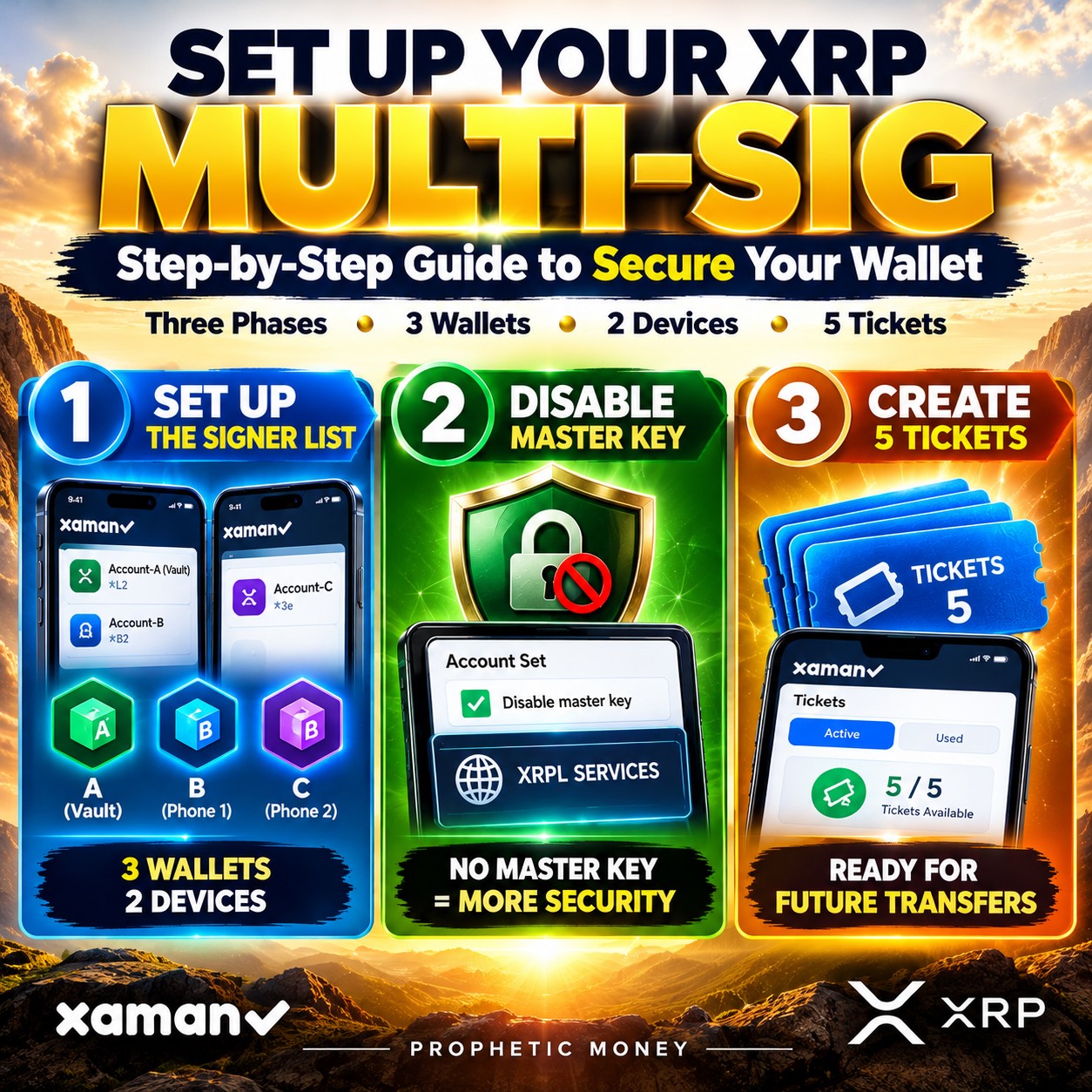
Protect your XRP with enterprise-grade security by setting up a multi-signature vault from start to finish.
Watch video instructions here:
https://youtu.be/aGHySfaqGZU
https://rumble.com/v7h7448-how-to-set-up-multi-sig-in-xaman-wallet-from-scratch-and-protect-your-xrp-c.html
https://x.com/Prophetic_Money/status/2112992857736757627
See all steps with screenshots below:
In our previous tutorial, we showed you how to execute a daily multi-sig transfer once everything was running. In this comprehensive guide, we take you through the complete setup process from scratch.
See previous tutorial here: https://propheticmoney.com/protect-your-xrp-with-xaman-wallet-multi-sig/
To achieve maximum security, our setup relies on three separate wallets across two devices: Account A and Account B on Phone 1, and Account C on Phone 2.
What We Will Accomplish Across 3 Phases:
- Phase 1: Setting Up the Multi-Sign Signer List
We designate Account A to act as our secure financial Vault, while registering Account B (on Phone 1) and Account C (on Phone 2) as our two required co-signers, setting a strict 2-of-2 quorum rule. - Phase 2: Disabling the Master Key
To make the vault truly unhackable and unstealable, we permanently disable Account A’s master private key using the XRPL Services portal. From this point forward, the vault’s individual seed phrase can no longer authorize transfers on its own—it must be co-signed. - Phase 3: Creating Multi-Sig Tickets
Because true multi-sig requires independent approvals that can happen at different times, we generate a batch of 5 Ledger Tickets. Think of a ticket as a reserved pass for a future transaction sequence, preventing ledger sequencing errors and allowing smooth asynchronous signing.
Note on Device & Wallet Configurations:
While we chose a 2-device setup (Phone 1 holding Accounts A & B, and Phone 2 holding Account C) as a practical balance of security and convenience, using 3 separate physical devices (one dedicated device per wallet) is even more secure because it completely eliminates single-device risk. On the other hand, XRPL Multi-Sig will technically work even if all 3 wallets reside on the exact same smartphone – though doing so removes the physical protection benefits of multi-device signing.
Hardware-Level Protection with Xaman Cards:
For those looking to take their security a step further, you aren’t restricted to standard mobile hot wallets. You can use Xaman Cards—which are physical NFC smart cards manufactured in partnership with Tangem—as one or both of your co-signing accounts. These function as true air-gapped hardware wallets: your private keys are generated and locked securely inside the Tangem chip and never touch your smartphone. During setup, you simply add the card’s public address into your signer list, and when it’s time to approve transactions, you tap the card against your phone via NFC.
Note on Compatibility: Traditional USB hardware wallets (like Ledger or Trezor) and standard multi-chain Tangem cards cannot be used for this specific workflow, as they lack the custom XRPL firmware required to process live xApp signing screens. To use physical hardware cards with Xaman’s MultiSign xApp, you must use official Xaman (Tangem) Cards.
Phase 1: Setting Up the Multi-Sign Signer List
Step 1: Phone 1 – Create the Three Accounts
Description: Set up three separate wallets: Account A and Account B on Phone 1, and Account C on Phone 2. All three accounts use independent seed phrases.
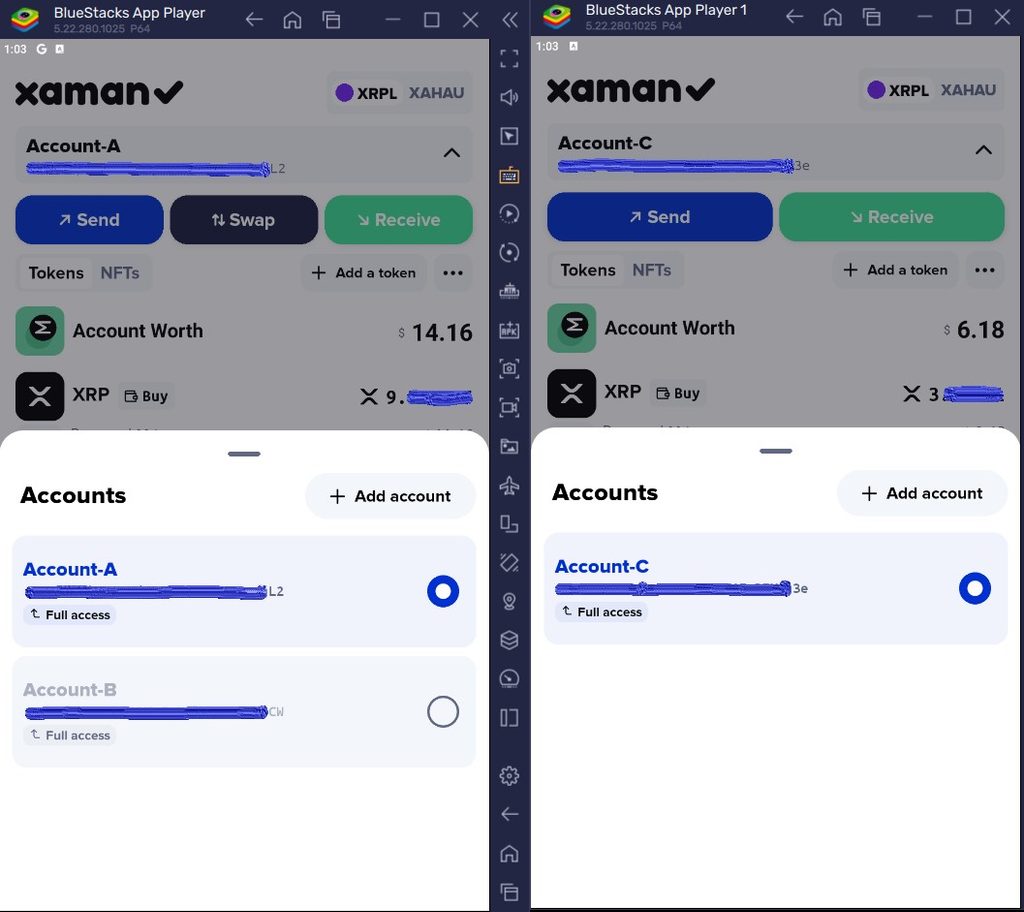
Step 2: Phone 1 – Launch MultiSign xApp
Description: Open the MultiSign xApp from Account A to begin configuring multi-signature protection.
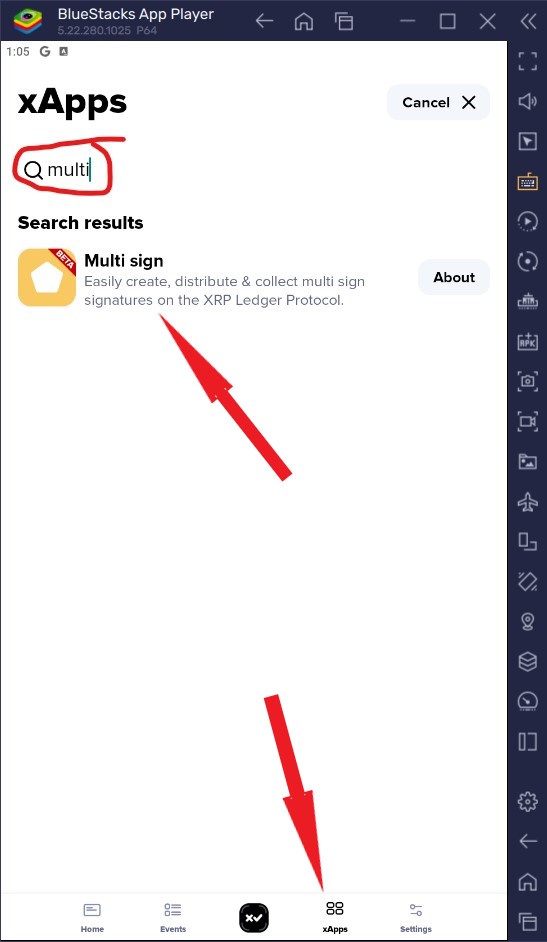
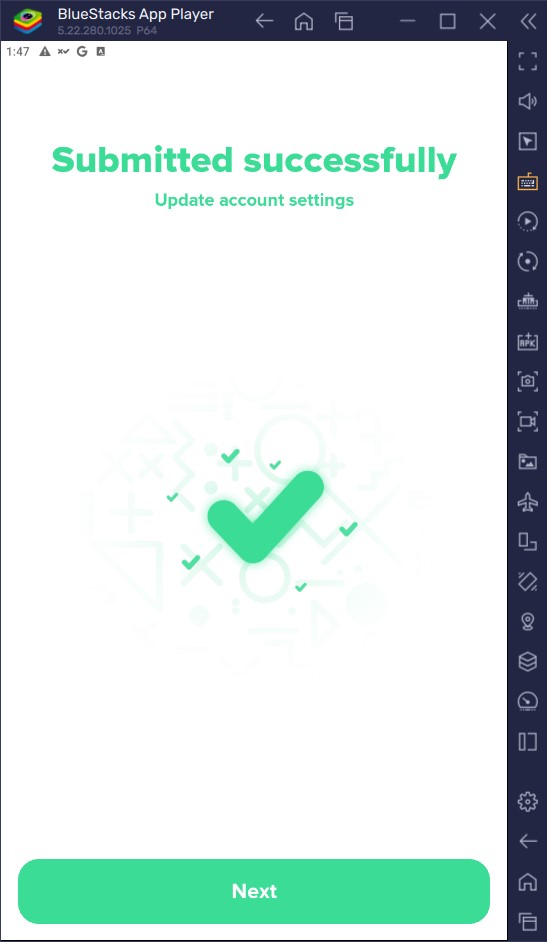
Step 3: Phone 1 – Initiate Signer List Configuration
Description: The app detects that multi-sig is missing. Click Setup SignerList to configure your security weights.
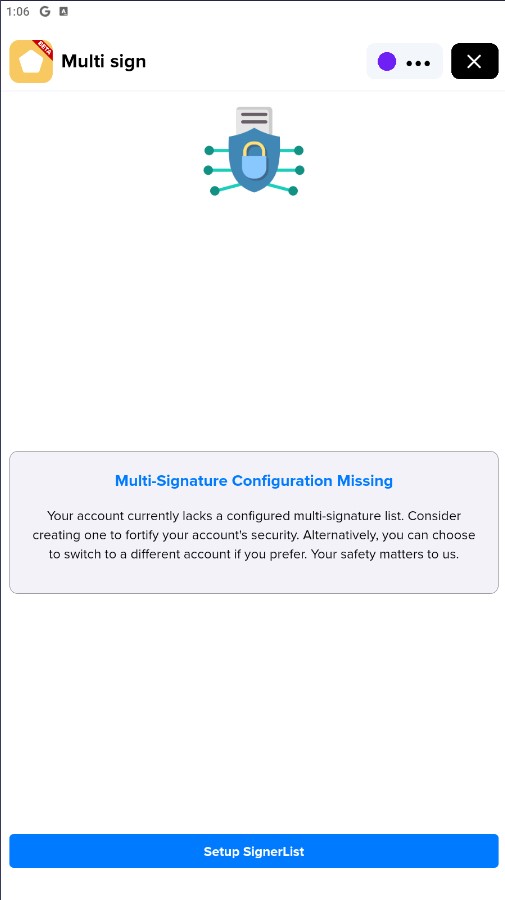
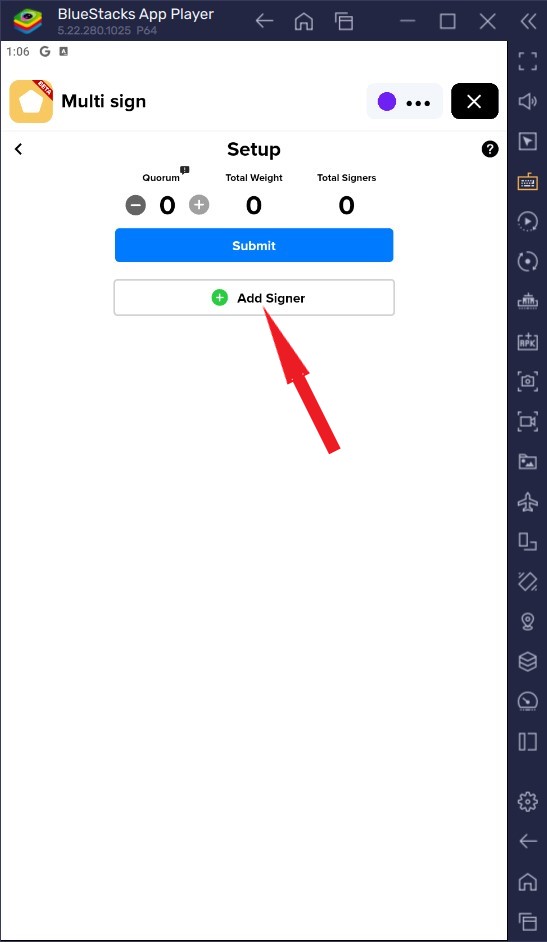
Step 4: Phone 1 – Open Signer Setup Dashboard
Description: The setup screen displays 0 quorum, 0 total weight, and 0 total signers. Click Add signer.
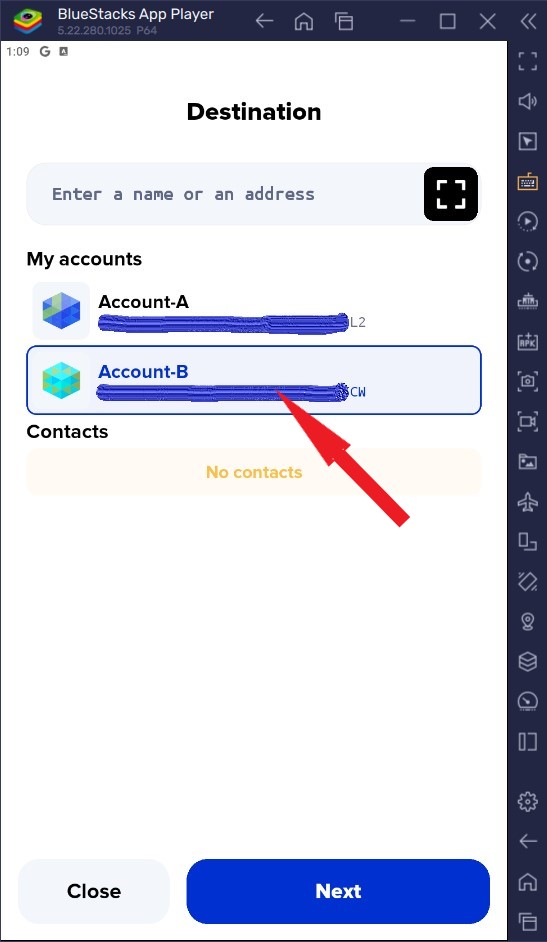
Step 5: Phone 1 – Select Signer Account B
Description: The destination screen displays your local accounts, with Vault Account A listed first and Account B listed second. Select Account B and click Next.
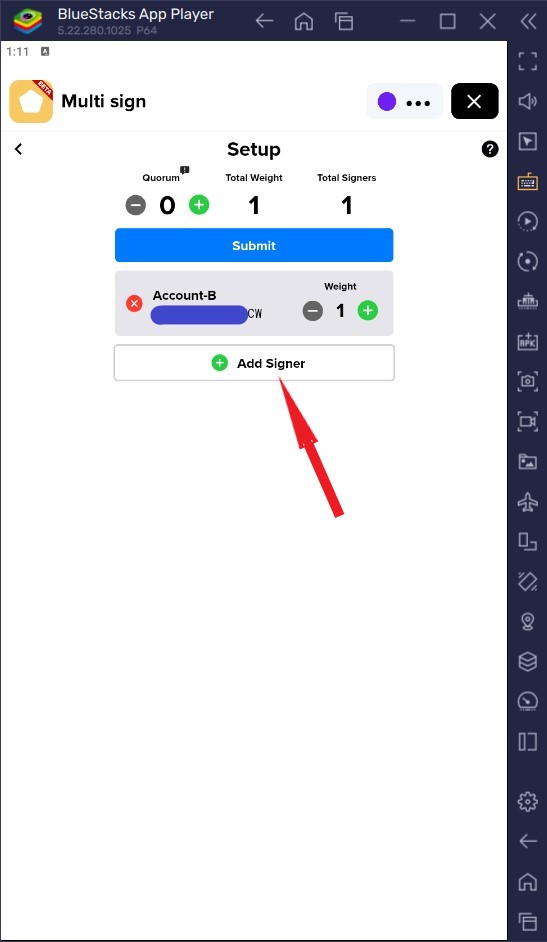
Step 6: Phone 1 – First Signer Added
Description: The setup screen now shows 1 total weight and 1 signer (Account B with a weight of 1). Click Add signer again.
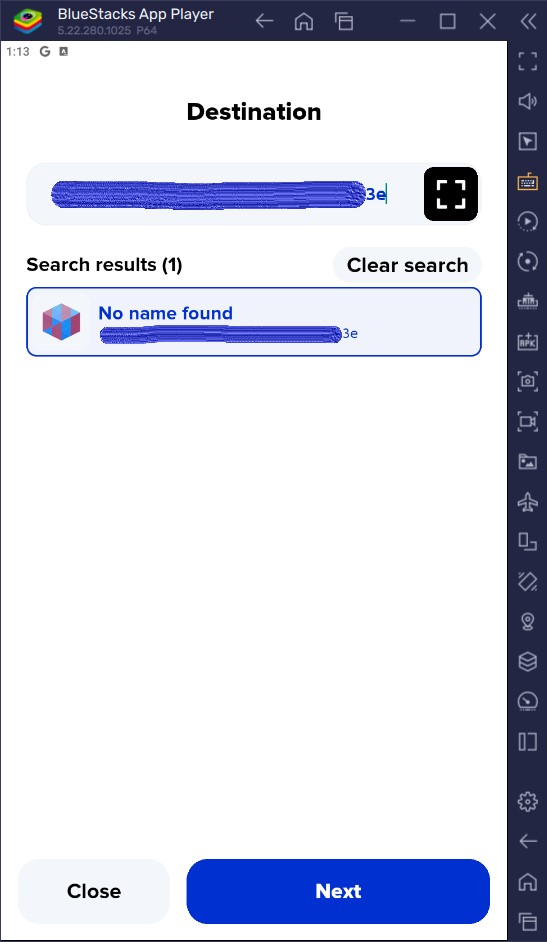
Step 7: Phone 1 – Add Second Signer (Account C)
Description: Since Account C resides on Phone 2, paste Account C’s public wallet address into the destination field and click Next.
Step 8: Phone 1 – Review Signer Weights
Description: The setup screen now shows 2 total signers, each with a weight of 1.
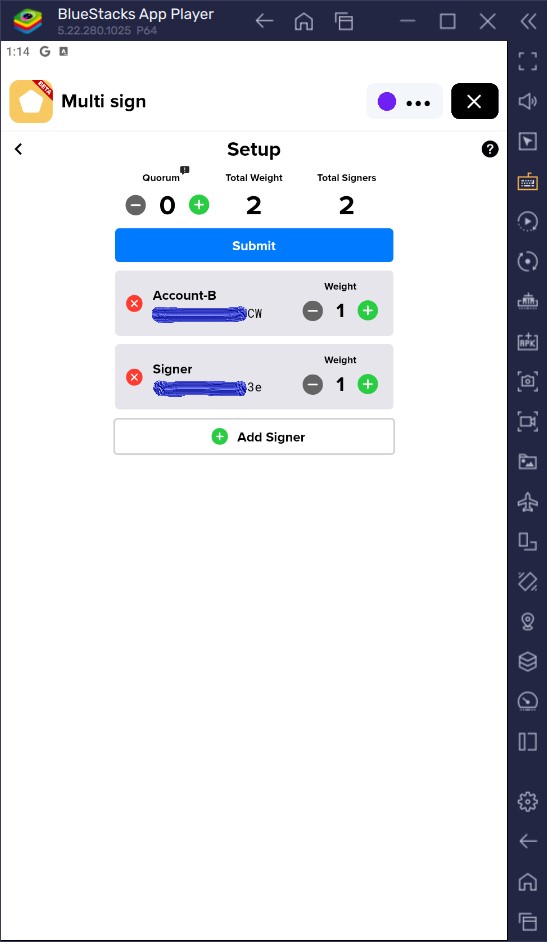
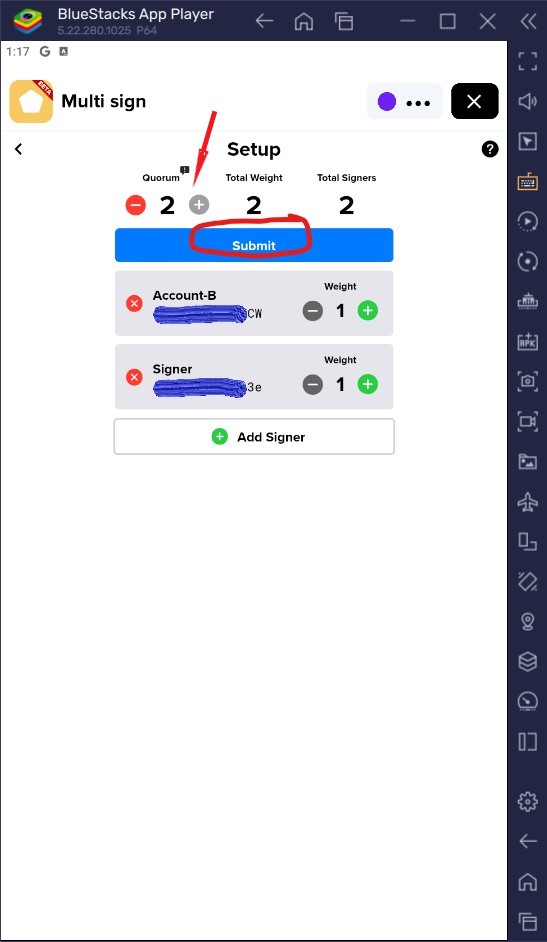
Step 9: Phone 1 – Configure Quorum to 2
Description: Change the Quorum value from 0 to 2, requiring both signers to approve every transaction. Click Submit.
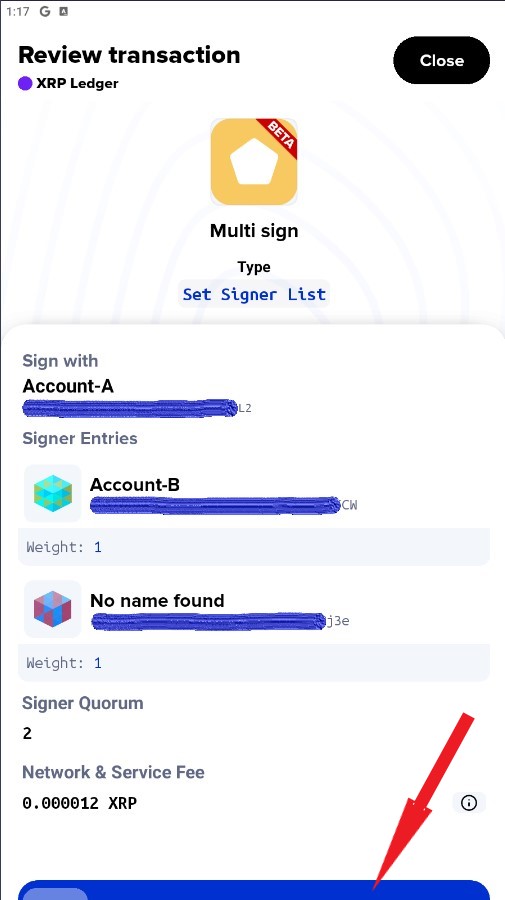
Step 10: Phone 1 – Review and Submit Signer List
Description: Review the transaction parameters on the review screen, then slide to accept.
Step 11: Phone 1 – Signer List Created Successfully
Description: Confirmation screen displays “Set Signer List.” Click Close.
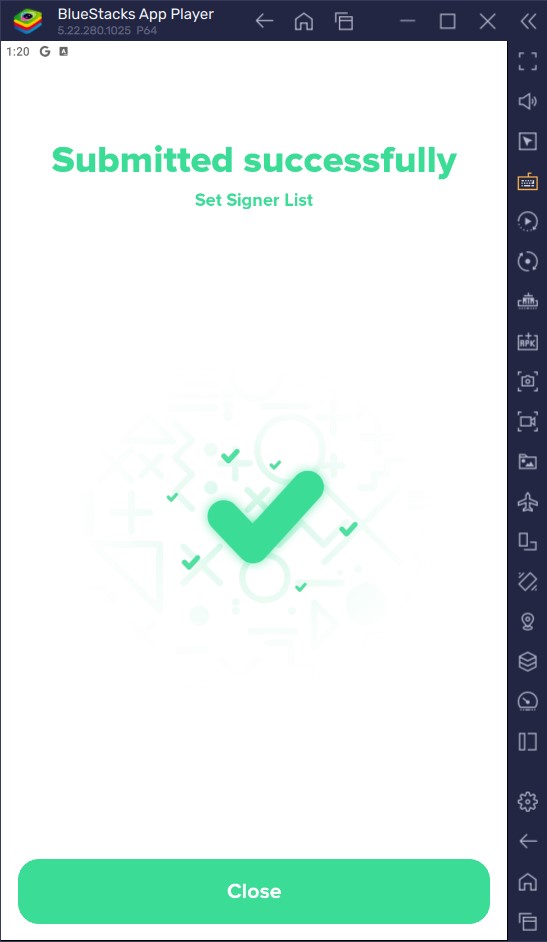
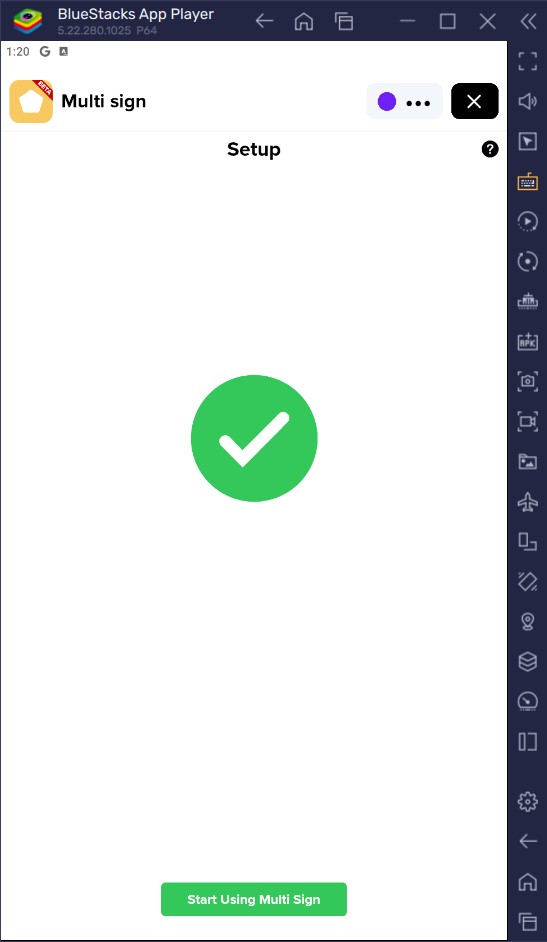
Step 12: Phone 1 – Signer List Success Confirmation
Description: The setup screen displays a green checkmark confirming the signer list was successfully configured. Click Start using multi sign at the bottom.
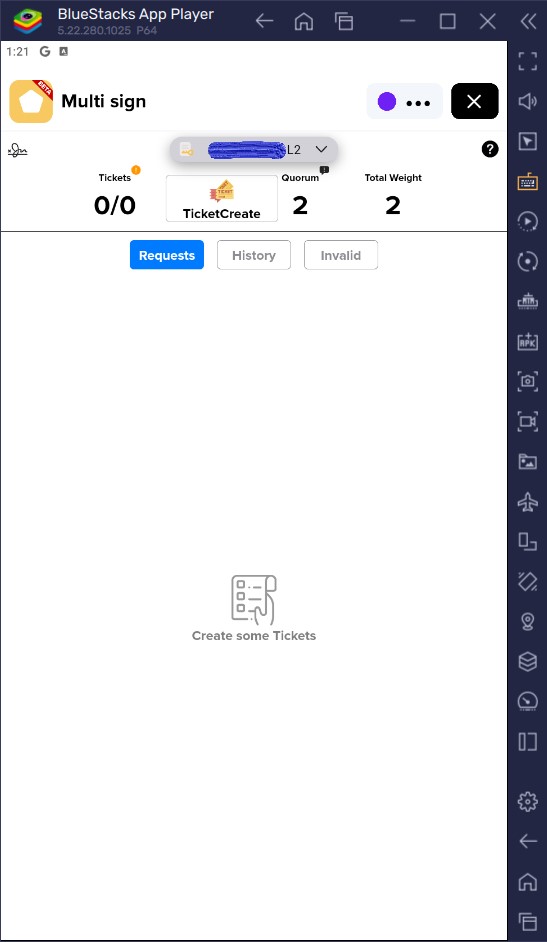
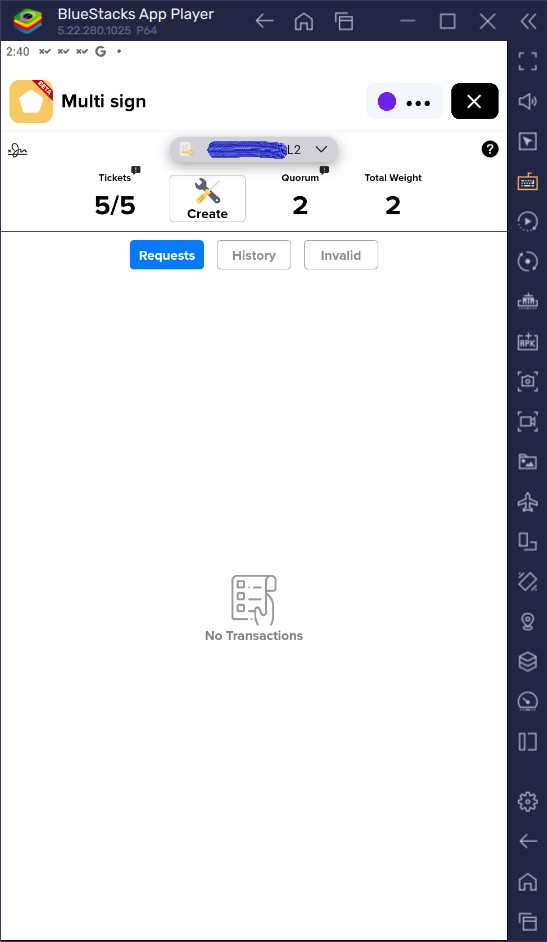
Step 13: Phone 1 – Multi-Sign Dashboard Active
Description: You arrive at the main MultiSign dashboard for Vault Account A (*L2), displaying 0/0 tickets, 2 quorum, and 2 total weight, ready for the next phase.
Phase 2: Disabling the Master Key via XRPL Services
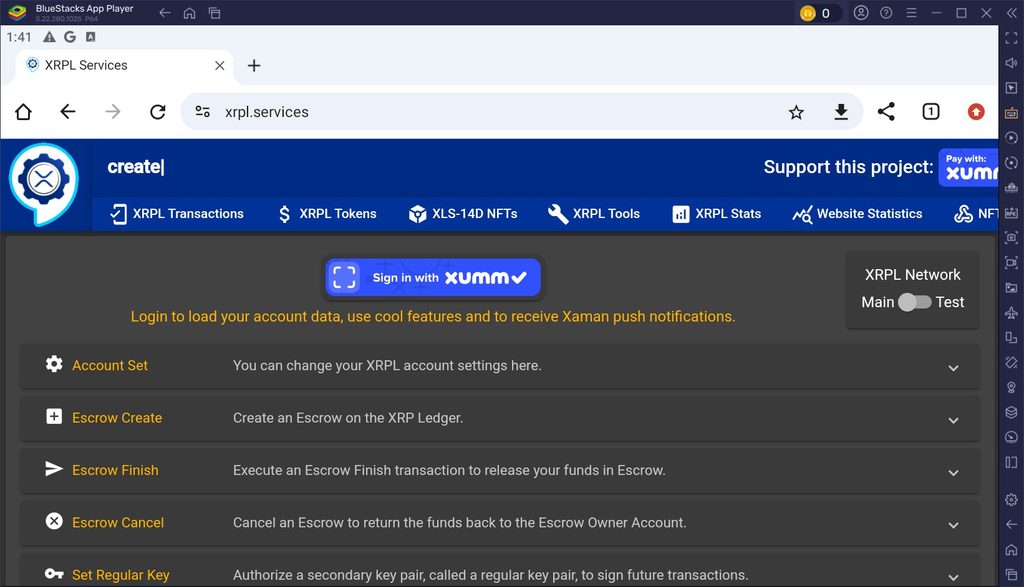
Step 14: Browser – Navigate to XRPL Services
Description: Open your browser and go to the official XRPL services website (https://xrpl.services/)
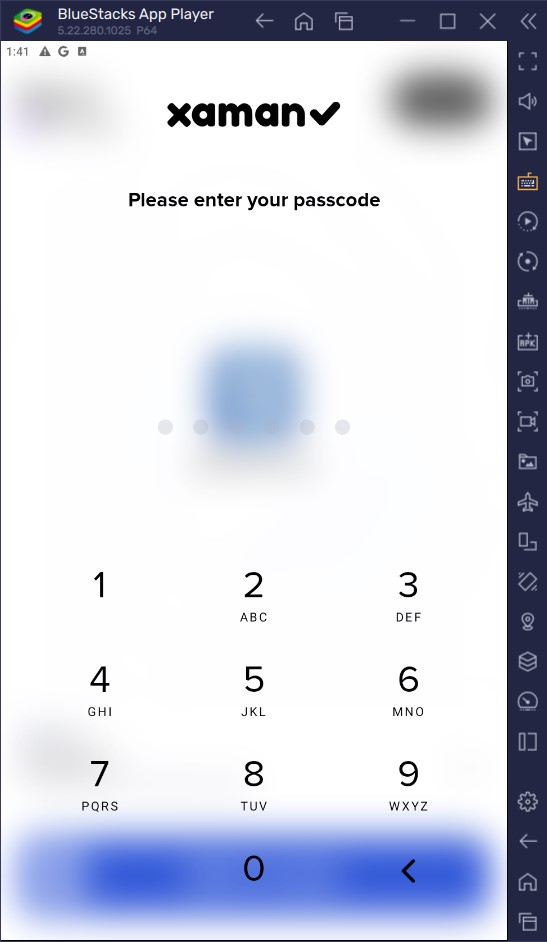
Step 15: Browser – Sign In with Xaman
Description: Trigger the sign-in prompt and enter your Xaman app passcode for Phone 1 (holding Account A).
Step 16: Phone 1 – Authorize Website Login
Description: Slide to accept the login request on Xaman to authenticate Account A with the XRPL services website.
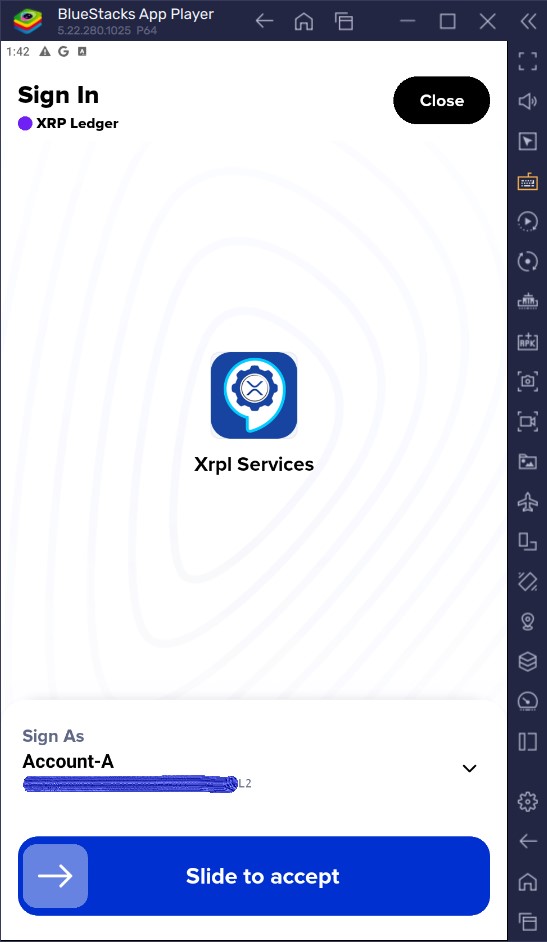
Step 17: Phone 1 – Login Success Confirmation
Description: The Xaman wallet displays a “Signed in successfully” confirmation screen. Click Next.
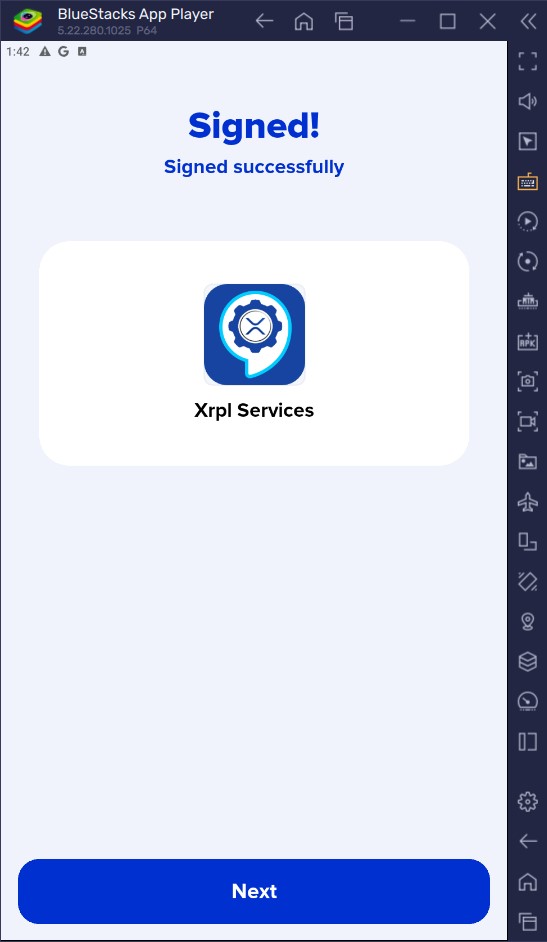
Step 18: Browser – Switch Back to Browser
Description: Switch back to your browser window where the XRPL services dashboard has now updated.
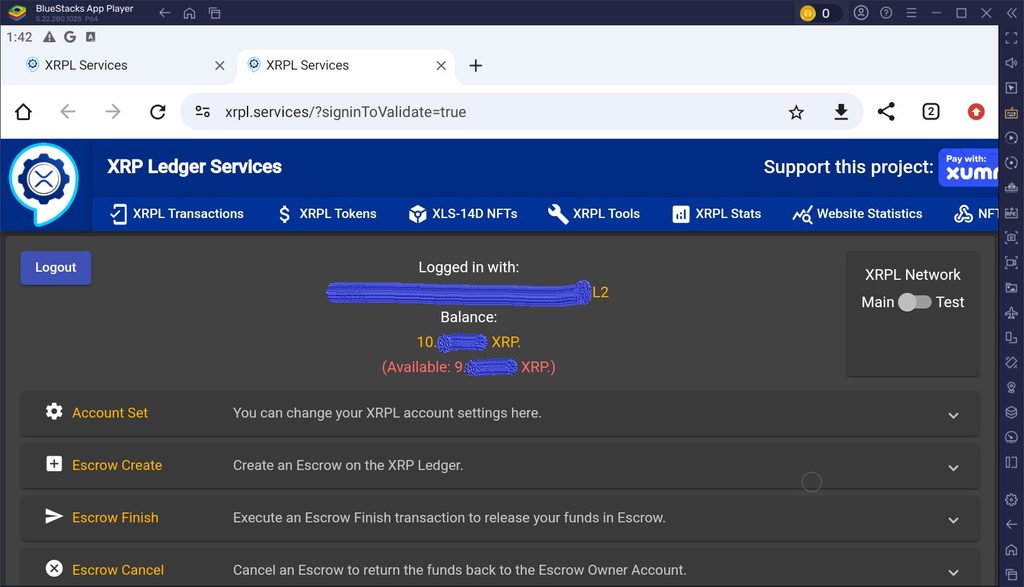
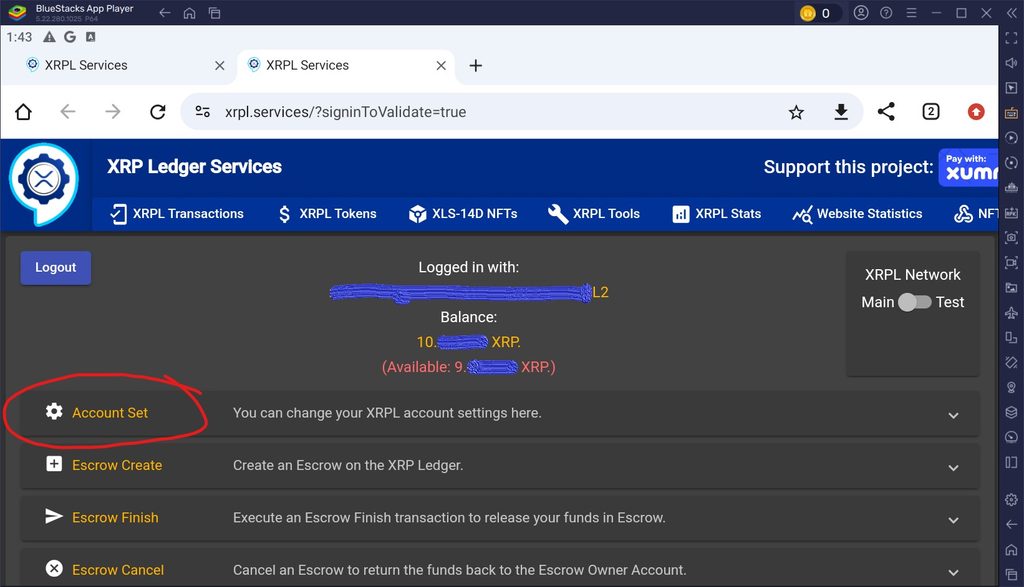
Step 19: Browser – Select Account Settings
Description: On the browser dashboard, select Account Set.
Step 20: Browser – Check “Disable Master Key”
Description: Check the “disable master key” checkbox. Read the critical security warning, then click Send account settings to Xaman.
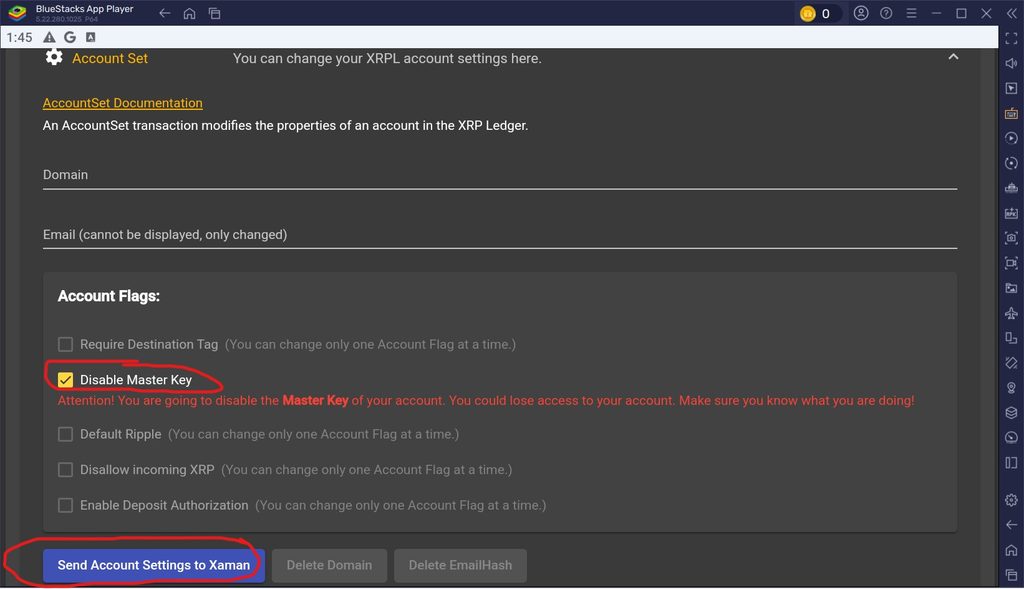
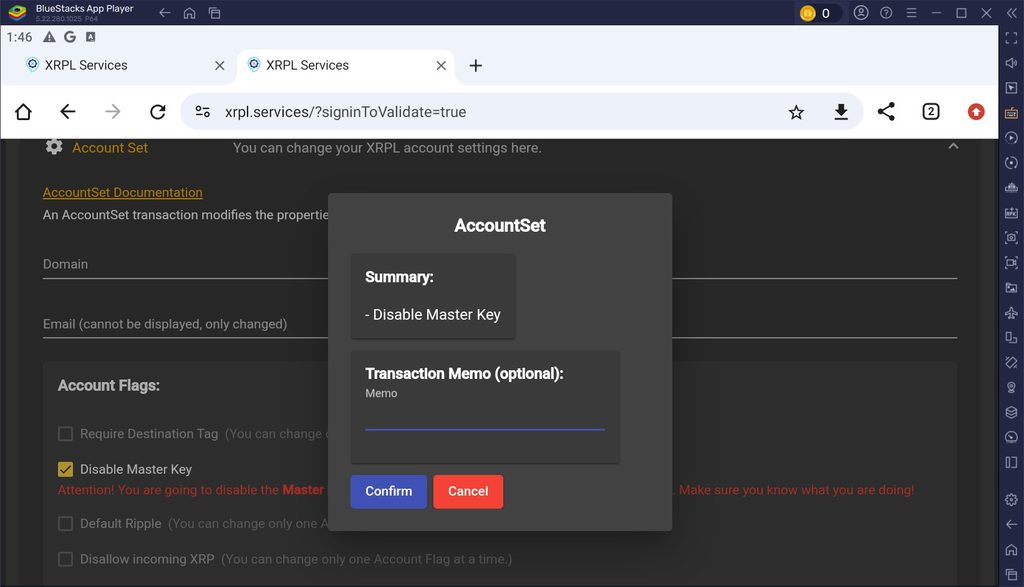
Step 21: Phone 1 – Confirm AccountSet Transaction
Description: A pop-up for AccountSet appears on your phone. Click to confirm.
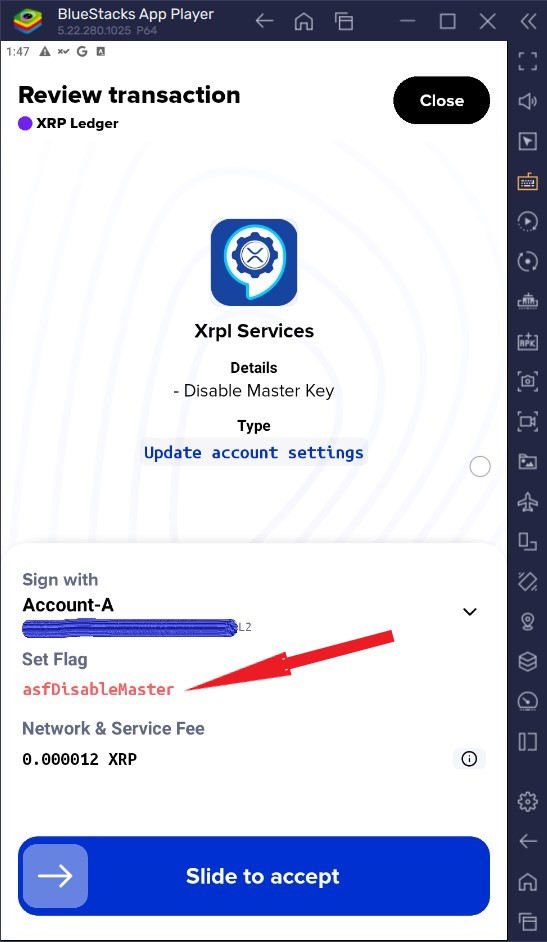
Step 22: Phone 1 – Review Transaction Details
Description: Review the transaction screen confirming the flag asfDisableMaster is set to sign with Account A, then slide to accept.
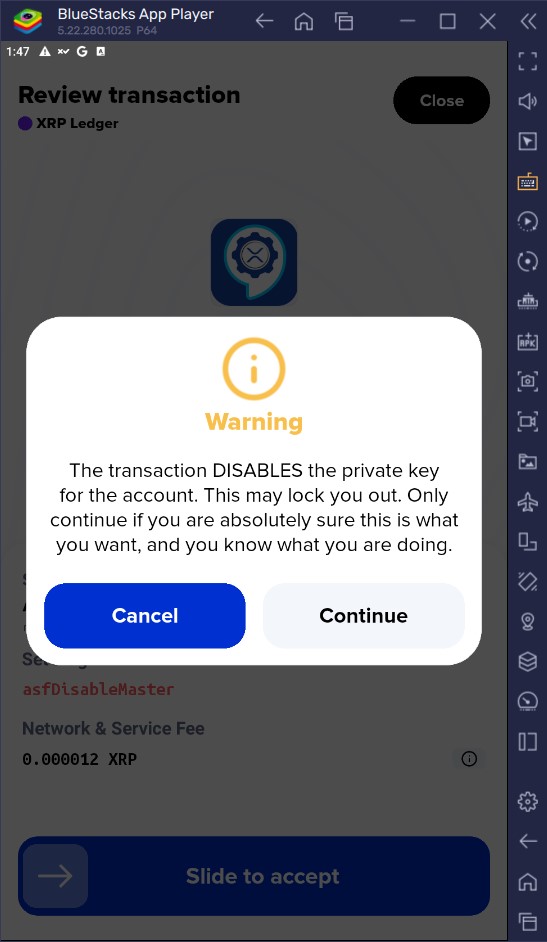
Step 23: Phone 1 – Acknowledge Security Warning
Description: A final warning reminds you that disabling the private key locks out the master key. Click Continue.
Step 24: Phone 1 – Master Key Disabled Successfully
Description: The success screen appears. Click next to return to Xaman’s home screen.
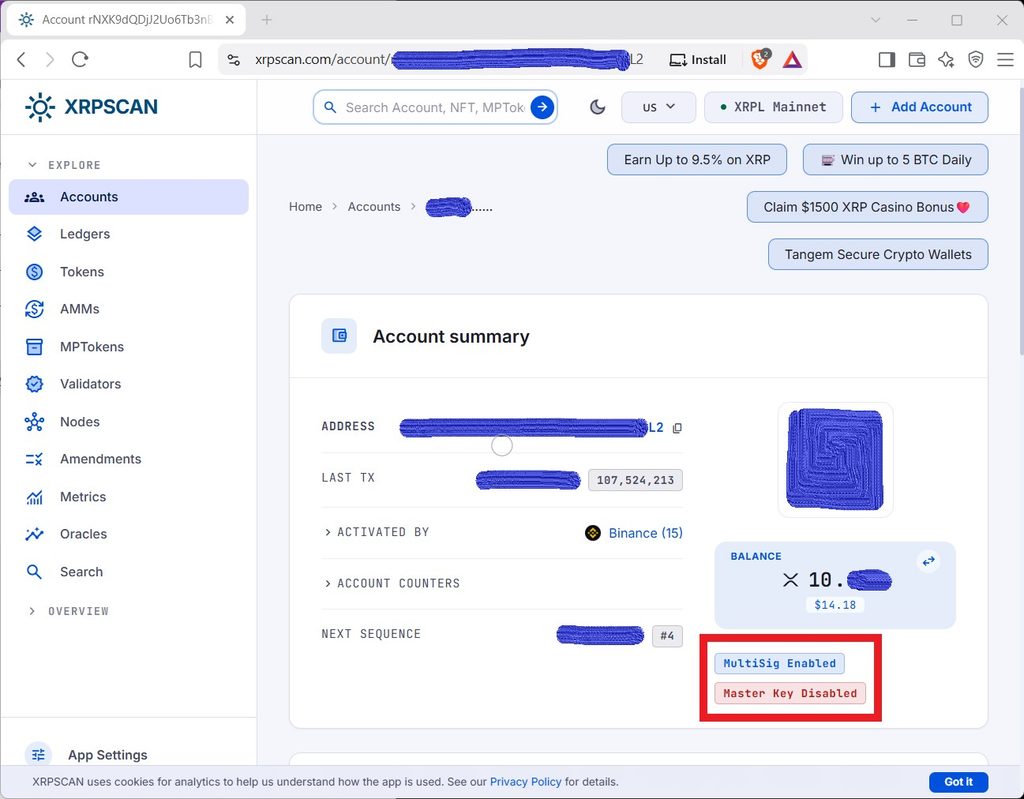
Step 25: Browser – Verify on XRPSCAN
Description: Open the XRPSCAN blockchain explorer and search Account A’s public address to independently verify that multi-sig is enabled and the master key is disabled.
Phase 3: Creating Multi-Sig Tickets (Co-Signed by Phone 2)
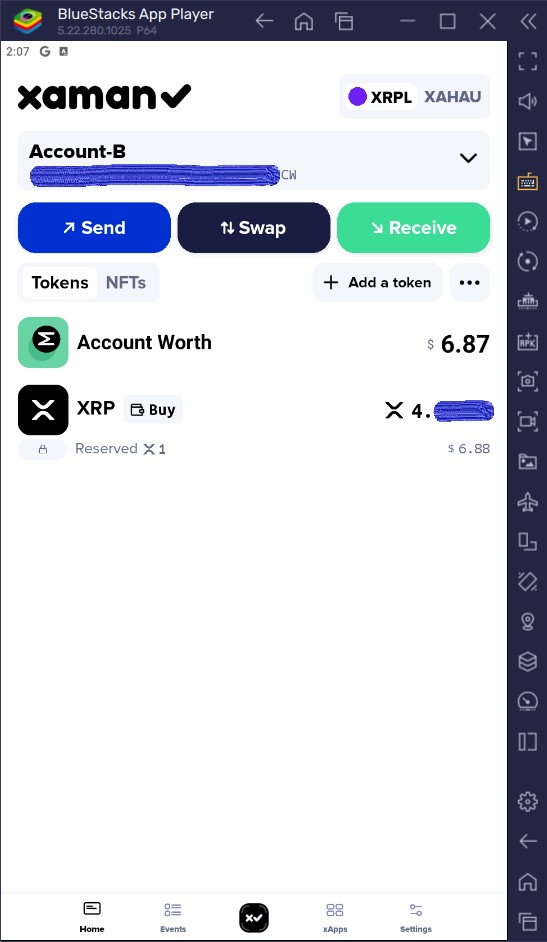
Step 26: Phone 1 – Open Account B
Description: Open the Xaman app on Phone 1 and switch to Account B (your first co-signer).
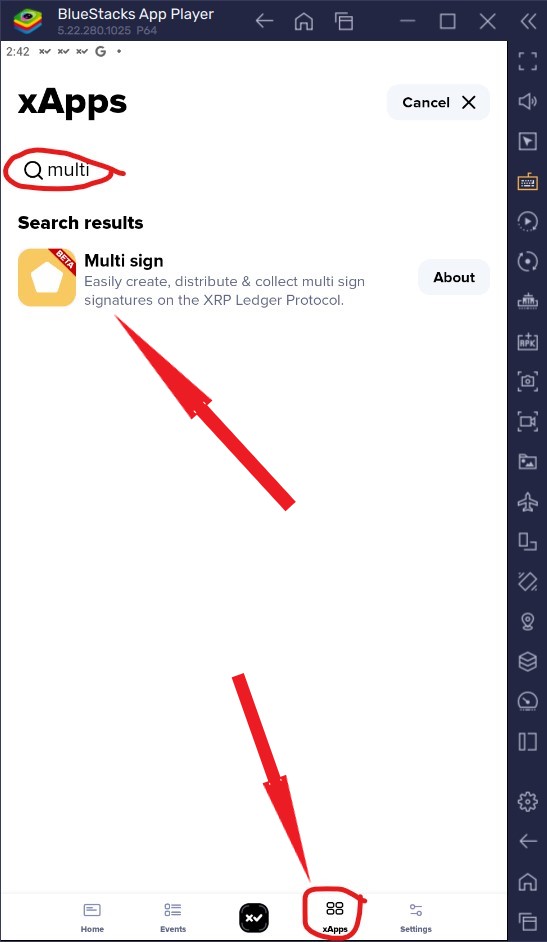
Step 27: Phone 1 – Launch MultiSign xApp
Description: Open the MultiSign xApp to initiate ticket creation for Vault Account A.
Step 28: Phone 1 – Initiate Ticket Creation
Description: Click the TicketCreate button on Vault Account A’s dashboard.
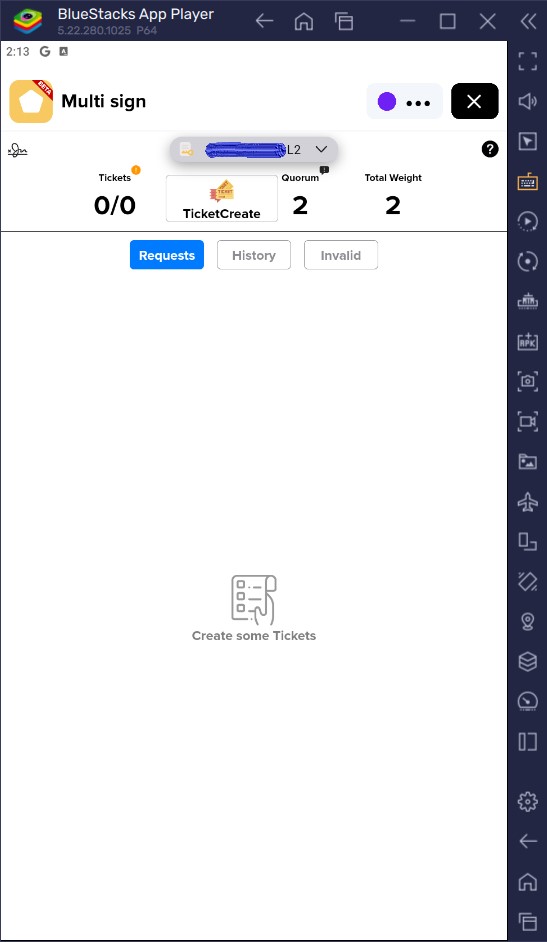
Step 29: Phone 1 – Select Ticket Quantity
Description: Select 5 tickets to reserve transaction slots on the ledger, then click submit.
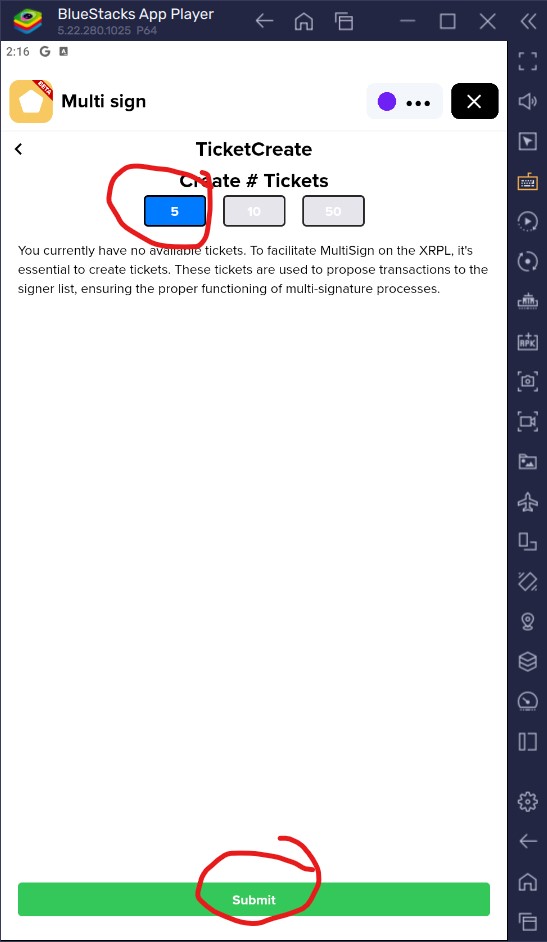
Step 30: Phone 1 – Review and Sign Ticket Creation
Description: Review the transaction summary (signing as Account B for Account A, creating 5 tickets), and slide to accept.
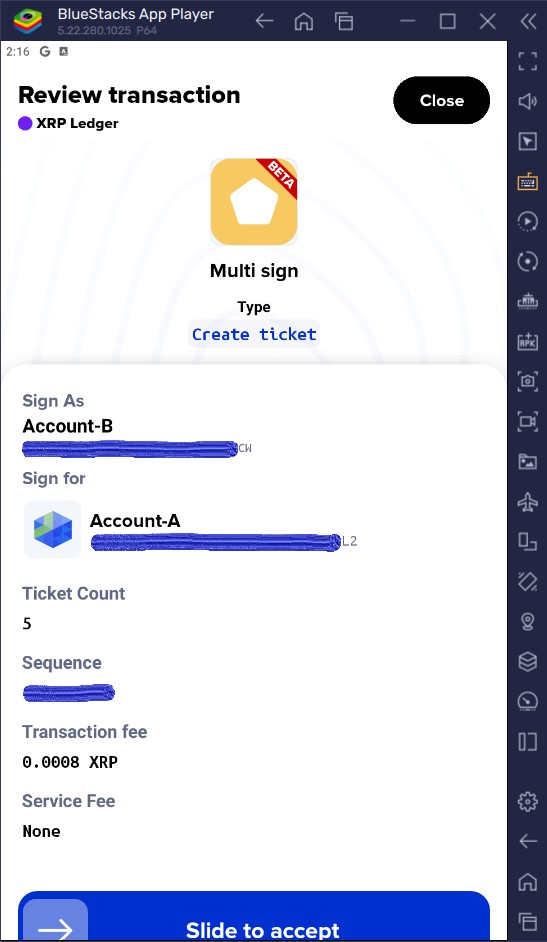
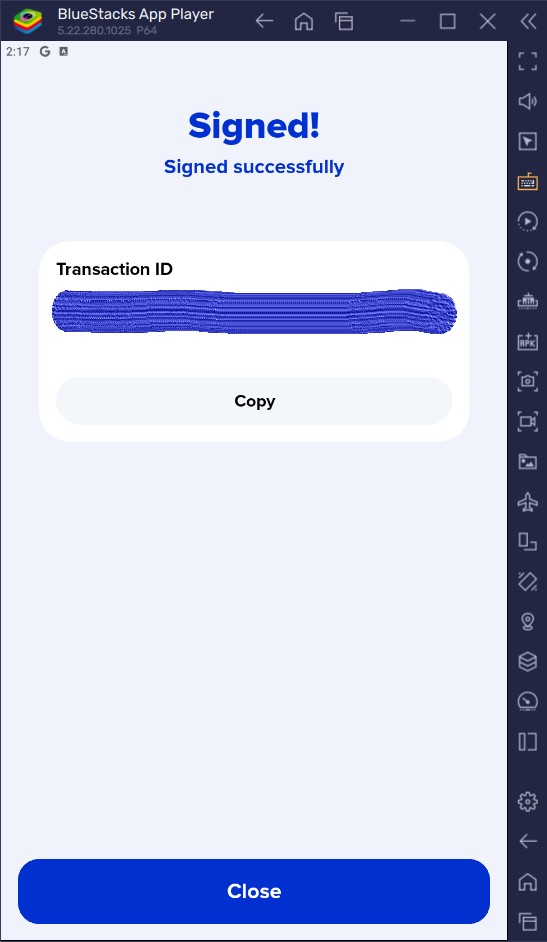
Step 31: Phone 1 – First Signature Applied
Description: Confirmation screen displays. Click close to view the voting status showing 50% approval, waiting for Account C.
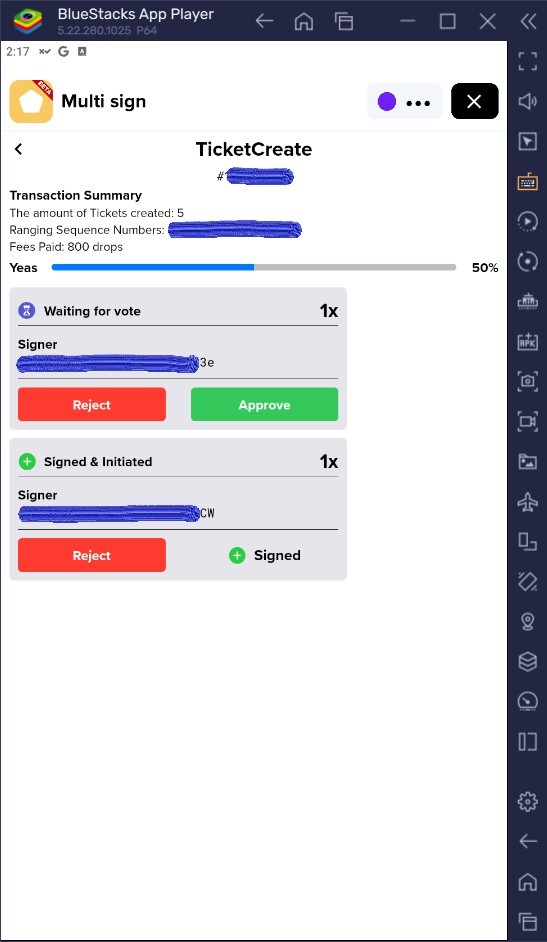
Step 32: Phone 2 – Import Vault Account A as Read-Only
Description: On Phone 2, tap the account menu, select Add Account > Import Existing Account, choose Read Only, paste Vault Account A’s address, and label it Account-A.
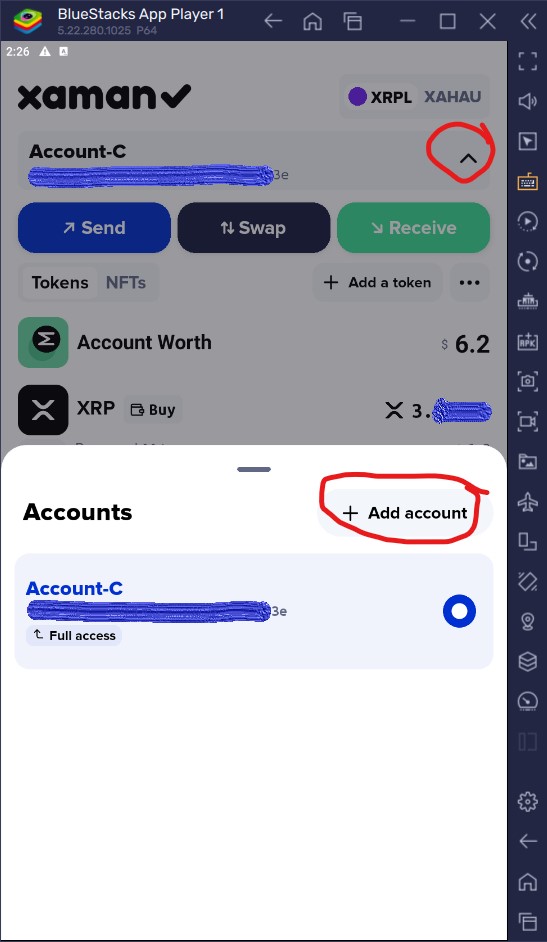
Step 33: Phone 2 – Open MultiSign App & Select Account C (*3e)
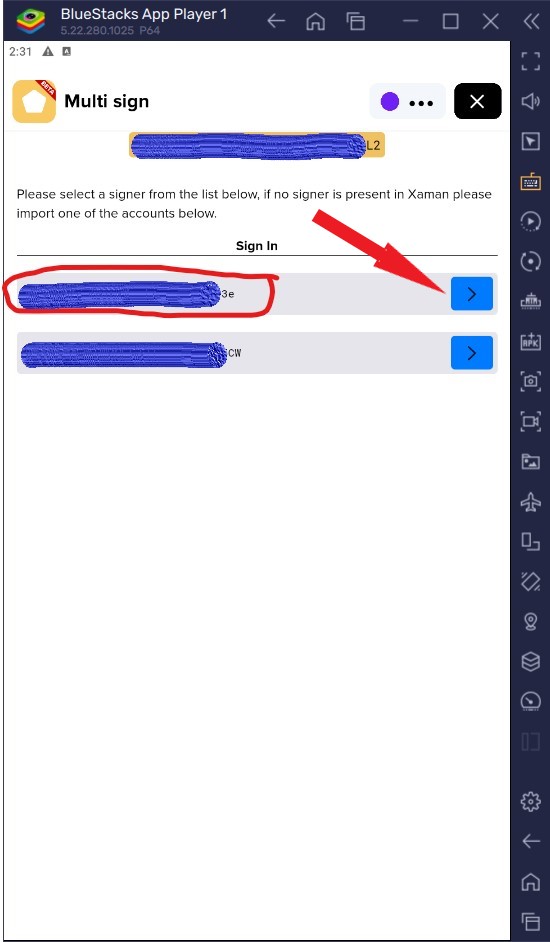
Description: On Phone 2 (viewing Read-Only Vault Account A), open the MultiSign xApp. The screen lists Account A at the top, with Account C (*3e) listed first as your local key. Tap Account C (blue arrow) to authenticate.
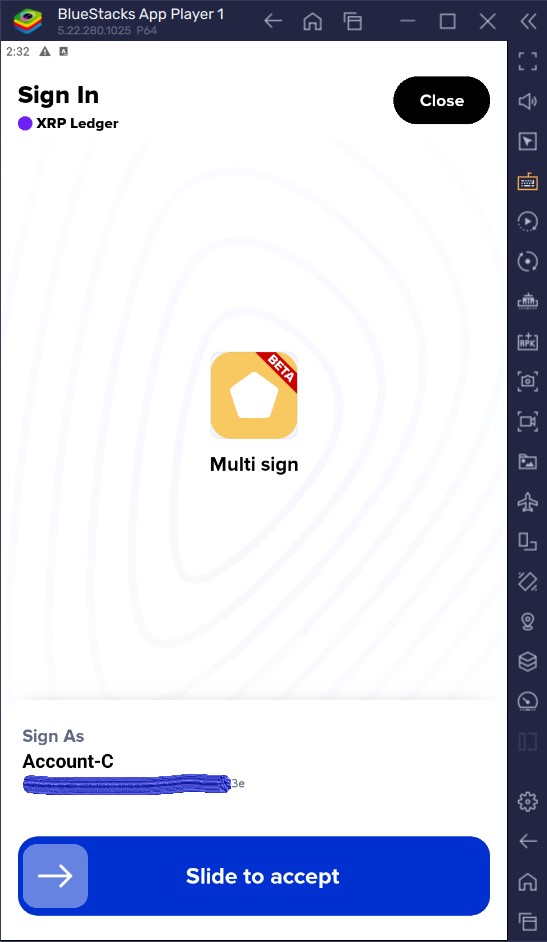
Step 34: Phone 2 – Slide to Authenticate
Description: Slide to accept authentication using Phone 2’s credentials.
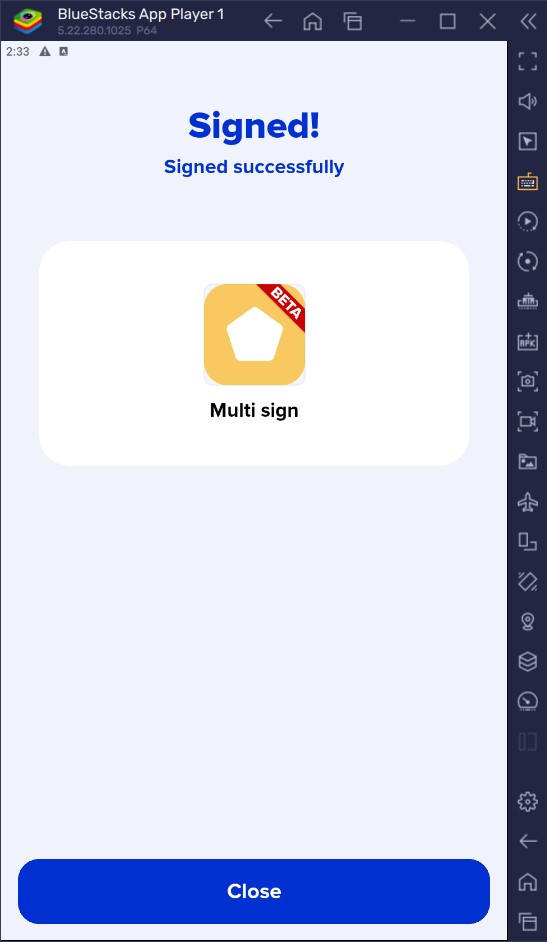
Step 35: Phone 2 – Signed Successfully Screen
Description: The authentication success confirmation screen is displayed. Click Close to proceed.
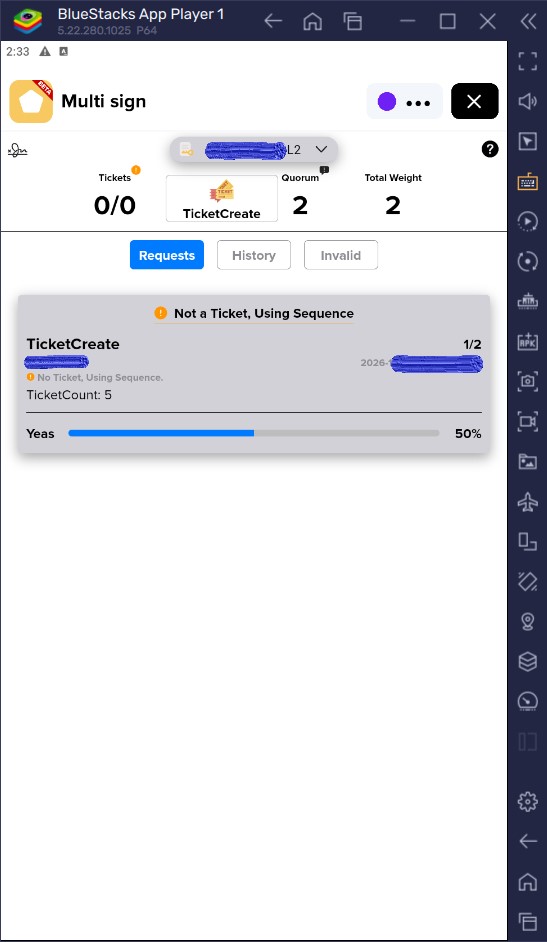
Step 36: Phone 2 – Locate Pending Proposal (Gray Box)
Description: On the MultiSign dashboard, locate the pending ticket creation proposal displayed as a gray box.
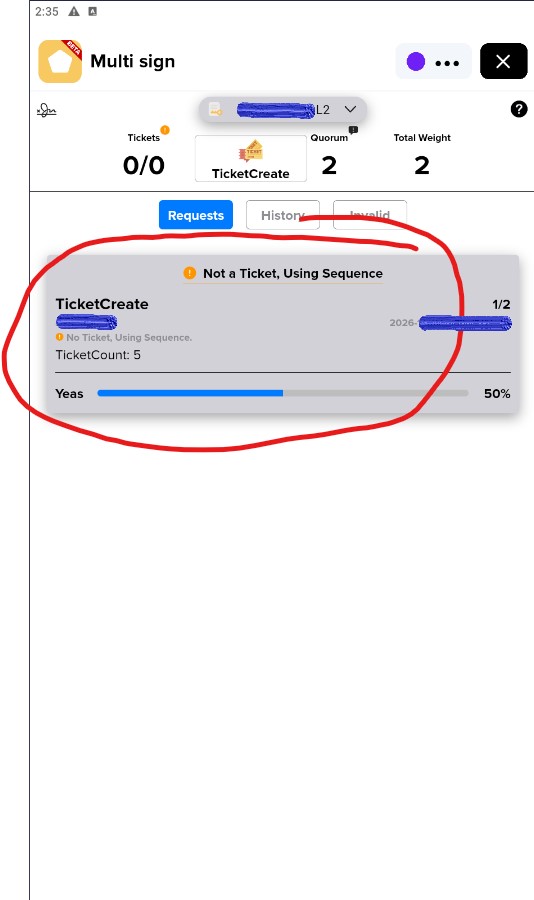
Step 37: Phone 2 – Open Pending Proposal Summary
Description: Tap the gray proposal box to view the full transaction summary and 50% voting status.
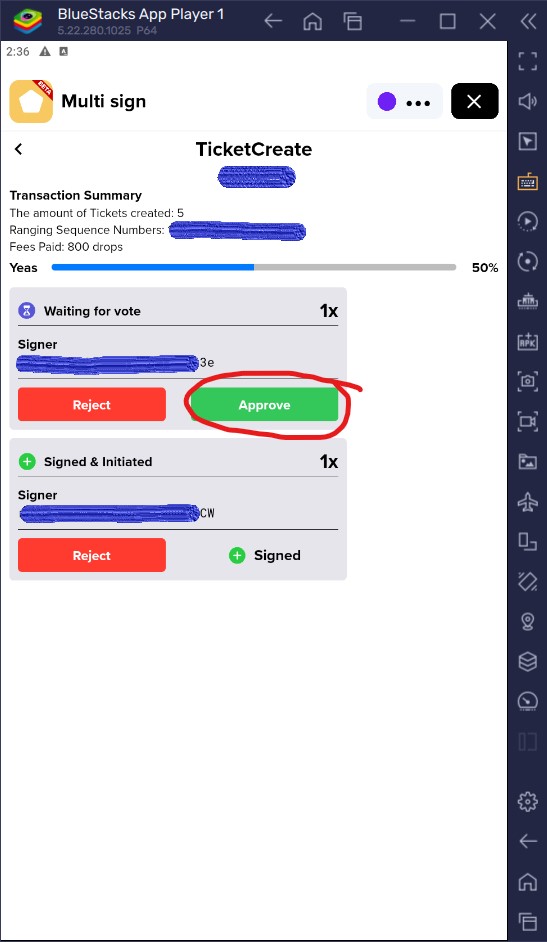
Step 38: Phone 2 – Approve as Account C (*3e)
Description: Tap the green Approve button next to Account C to attach the final required signature.
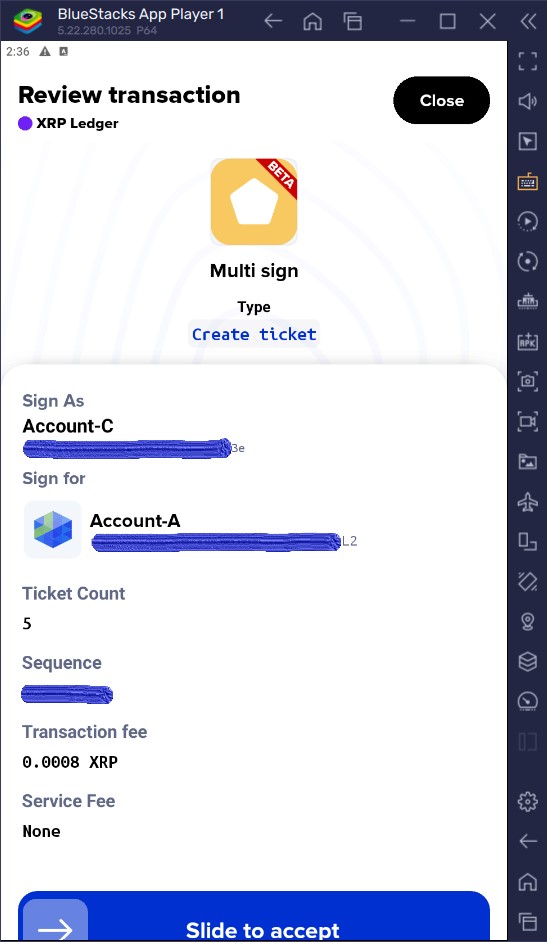
Step 39: Phone 2 – Review Co-Sign Payload & Slide to Accept
Description: Review the co-sign summary (Sign As: Account C, Sign for: Account A, Ticket count: 5) and slide to accept on the same screen to apply Signature 2 of 2.
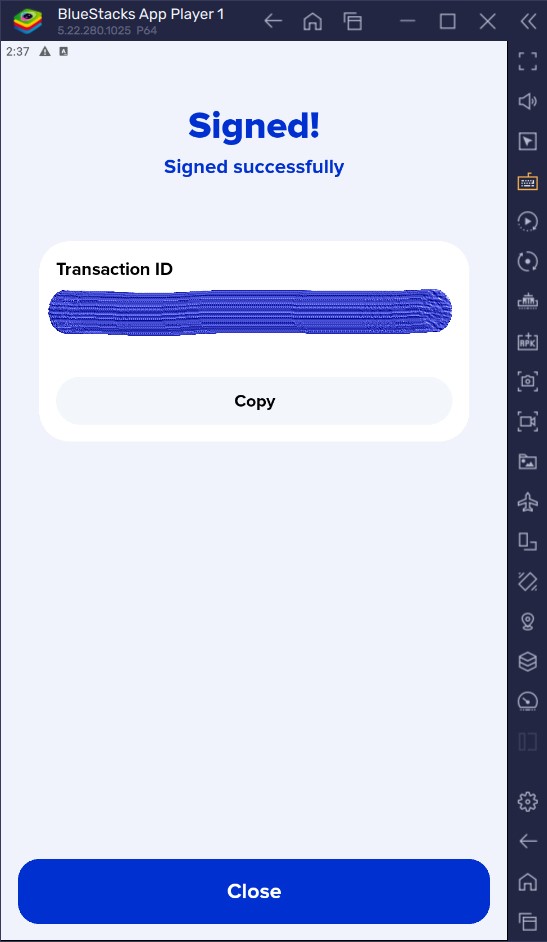
Step 40: Phone 2 – Signed Successfully Screen (Co-Sign)
Description: The signed successfully confirmation screen appears, indicating both signatures are attached. Click Close.
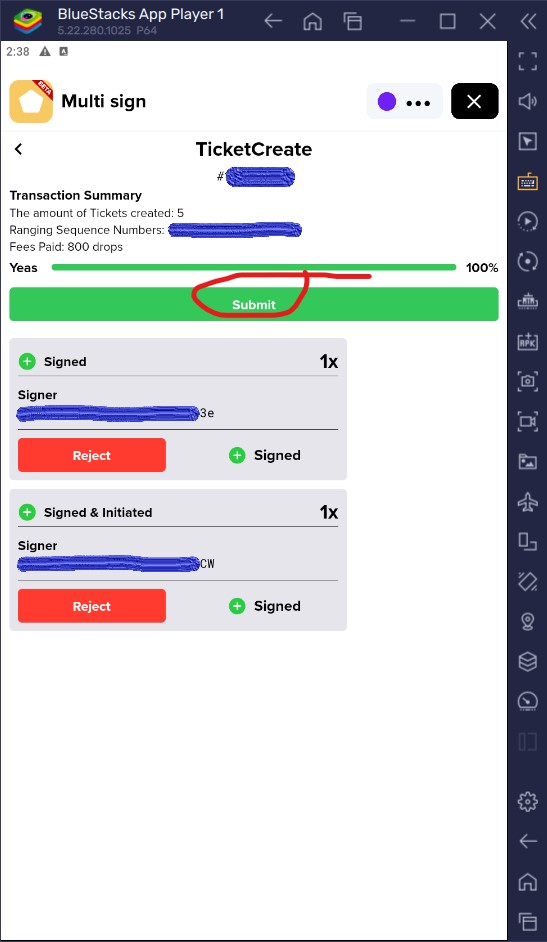
Step 41: Phone 2 – Broadcast to XRP Ledger
Description: With 100% quorum achieved and both co-signatures attached, tap Submit to broadcast the multi-sig ticket creation request to the XRP Ledger network.
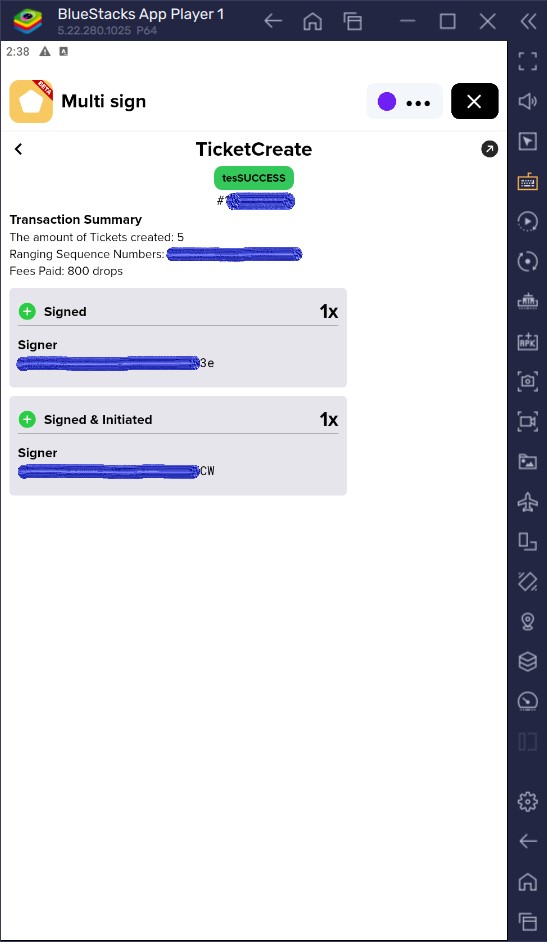
Step 42: Phone 2 – Transaction Validated On-Chain (tesSUCCESS)
Description: The MultiSign Ticket Create success screen appears showing tesSUCCESS and confirming 5 tickets were created on-chain.
Step 43: Phone 1 & 2 – Ticket Inventory Verified
Description: Return to the main MultiSign tickets screen to confirm all 5 of 5 tickets are active and ready for future multi-sig transfers.
Pair it with a Xaman Tangem Card and you get true cold wallet protection on top of multi-sig. Keys stay on the card. Security level goes even higher.
https://x.com/XamanWallet/status/1840706709393682864
Xaman Wallet @XamanWallet 9/30/24
Xaman is your gateway to the XRPL, right in your pocket.
Add an Xaman Tangem Card to turn it into a cold wallet—your private keys never leave the card!
With account reserves covered, you’re ready to dive into the XRPL.
🌟 Xaman is your gateway to the XRPL, right in your pocket.
— Xaman® Wallet 🪝 (@XamanWallet) September 30, 2024
Add an Xaman Tangem Card to turn it into a cold wallet—your private keys never leave the card! 🧊
With account reserves covered, you're ready to dive into the XRPL.
Want to learn more? https://t.co/tkFPLXTddD
Get…
Prophecies said buy Tangem Wallet
We know XRP is the main prophetic coin that matters
What if Tangem prophecy was never about the generic cards, but specifically securing your XRP with the official Xaman Tangem cards? Makes total sense with the multi-sig guide i just dropped