

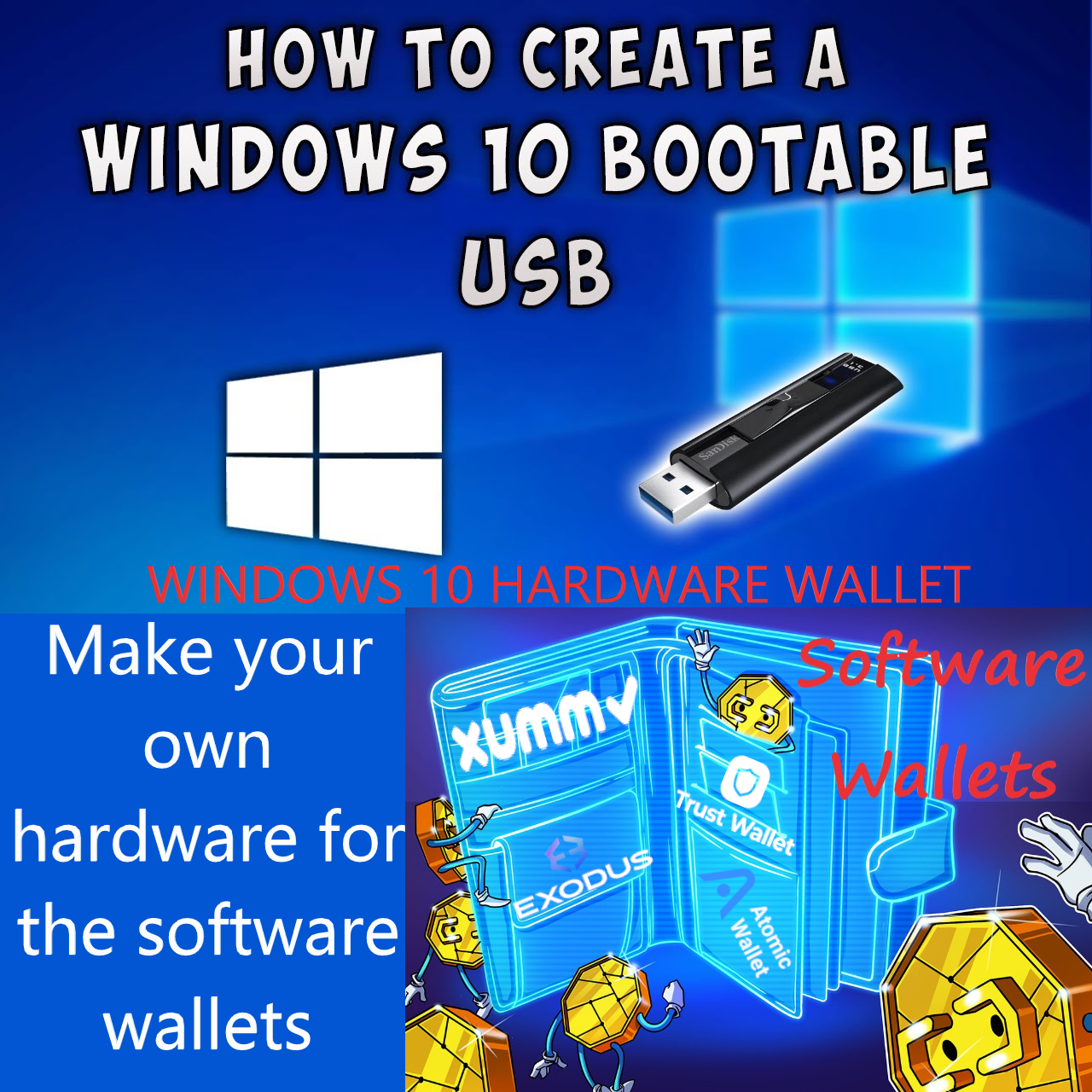
How to make your own Crypto Hardware Wallet for your Software Wallets.
I want to share what I believe is the most secure way to hold crypto and do financial transactions. This will require some computer knowledge, so unfortunately, this advice may not apply to everyone. But for those that it does apply, I think you will understand the benefits of doing this.
The only reason Ledger Nano hardware wallet is recommended over using a software wallet like Exodus, is because Ledger is only connected to the internet when you need to use it, and you can create the wallet seed phrase offline — on the device itself (without being impacted by viruses/trojans/malware). But you can pretty much do the same exact thing with Windows 10/11, a flash drive, and bunch of software wallets, for less than it costs to get a Ledger.
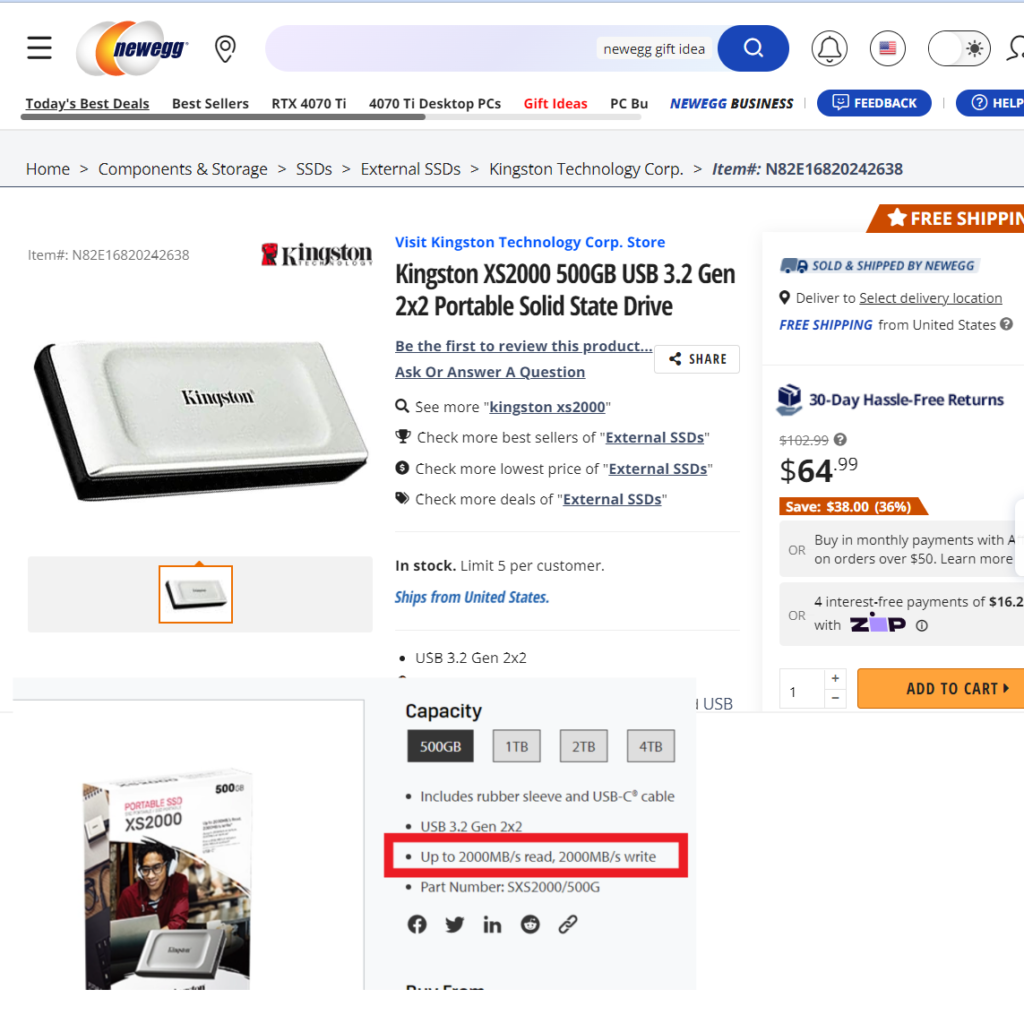
Here is what I did: I created a Portable Windows 10 Flash Drive. Imagine Windows 10 being installed on a flash drive that you can unplug and store away when not being used — kind of like the Ledger. This way you can do your finances and crypto wallet transactions on a separate version of Windows, not affected by malware or viruses, because you don’t use it for anything except your banking/crypto. I believe, this is a cheaper alternative to buying a separate computer that you would only use for crypto and banking. For around $100 or less (the drive I bought is currently on sale for $64 bucks on Newegg) you can buy a portable M.2. hard drive or a very fast flash drive that you can plug in to your computer, install Windows 10/11 on it (this will use your current computer’s windows 10/11 license, so no need to buy a new windows key), and run it right off of the flash drive. You can then install as many software wallets like Exodus, etc… as you want on it; and it’s all free. The only caveat is that each wallet would have to be installed under a different Windows user account. So you would need to create multiple Windows users (not hard, just a little time consuming), if you wanted to use multiple wallets from the same company (e.g. 5 Exodus Wallets). Below is an article and two YouTube videos that I followed and performed the recommended steps myself. And I can confirm that it works.
Here were the steps that I performed (Based on the videos and article below):
- I downloaded Windows 10 from the official Microsoft website
Windows 10 installation media
https://www.microsoft.com/en-us/software-download/windows10
Windows 11 installation media
https://www.microsoft.com/en-us/software-download/windows11
- I downloaded free portable software called Rufus
- I used Rufus software to install Windows 10 on the flash drive (I used Kingston XS2000 because it is super-fast)
How To Install Windows To External Hard Drive
https://www.technewstoday.com/install-windows-to-external-hard-drive
Here are two YouTube videos on installing Windows 10 and 11. One of the videos utilizes Rufus utility and the other utilizes WinToUSB utility. Most people recommend using Rufus.
Installing and Running Windows 11 on USB Drive
https://youtu.be/rvE2Q-Fq-NM
How to Install Windows 10 Directly onto USB External Hard Drive
https://youtu.be/nwKp8E2xIAc
Here is the Drive I used — Kingston XS2000 500GB. The read/write I saw is about 1,000 megabytes per second, which is very fast. Cheap flash drives are typically 20 megabytes to 60 megabytes per second write speed, so you might want to buy a more expensive flash drive or portable drive. The specifications will typically say the read and write speed.
Kingston XS2000 500GB USB 3.2 Type-C 2×2 IP55 3D NAND (SXS2000/500G)
https://www.kingston.com/en/ssd/xs2000-portable-usb-c-solid-state-drive
P.S. This is something that others have recommended and done, and I have also done myself. So do this at your own risk, if you choose.
 Prophetic Money