

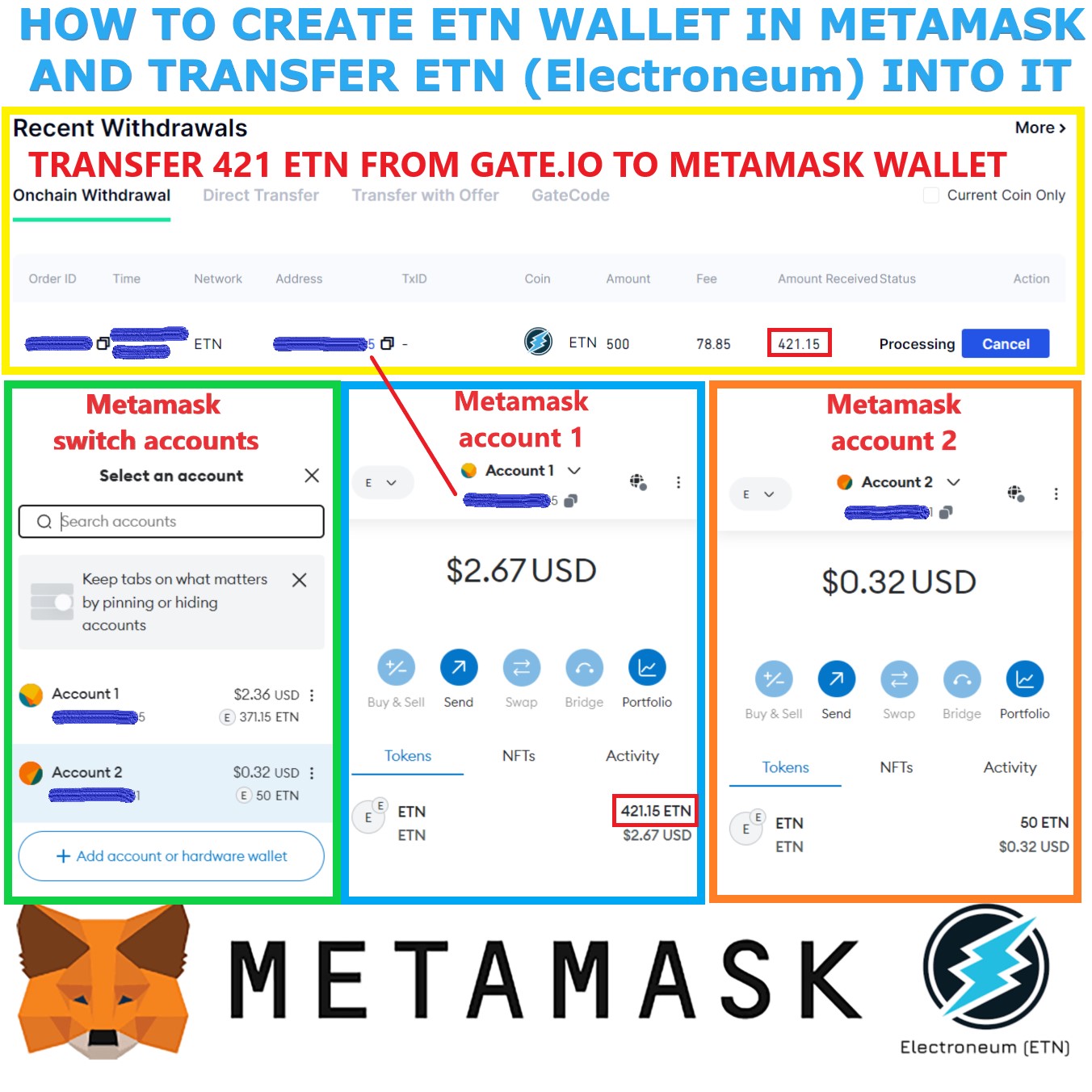
How to create New ETN (Electroneum) Metamask Wallet and Transfer ETN to it
Here is how I created a new ETN wallet in Metamask and transferred ETN into it.
1. Created a new metamask wallet in a desktop browser extension (I used Edge browser)
2. Backed up my seed phrase from the metamask wallet (people often forget this)
3. Followed the steps listed on the official Electroneum twitter post: https://x.com/electroneum/status/1770058226492432834
4. Launch the MetaMask extension or app and unlock it.
5. Click on network dropdown at the top and select “Add Network”
6. Click Add a network manually
7. Fill in these Network Details:
Network Name: Electroneum Mainnet
New RPC URL: https://rpc.electroneum.com
Chain ID: 52014
Currency Symbol: ETN
Block Explorer: https://blockexplorer.electroneum.com
Click “Save”. The network should now be selected.
8. Next, I went to https://chainlist.org website and connected my metamask wallet to the website (not sure if this is needed to be done, since some people didn’t do it, but I did it anyway, since it was listed in the Electroneum instructions). I later found out that people can either manually enter the ETN network details into metamask, or do the wallet connect on chainlist instead, which automatically enters the network details for you. you don’t have to do both, like I did. 🙂
9. You’re done! Your metamask wallet now has ETN functionality
You will notice that the Metamask Wallet Address stays the same as you’re switching between different networks (Ethereum, Electroneum, etc.) in the Wallet. When you connected ETN chain to your wallet, your wallet address did not change. So you’re basically sending your BNB, ETH, and now ETN to the same Metamask Wallet address.
You will also notice that your metamask wallet shows Account 1 at the top. If you want more wallet addresses, you just create additional accounts. I went ahead and created another account (Account 2) which gave me a second wallet address I can use for ETH, BNB, and ETN.
Testing my wallet:
Today I decided to test my wallet to make sure it works, by transferring ETN from a Crypto Exchange (Gate_com) to my Account 1 Metamask ETN Wallet, and then transfer ETN from Account 1 wallet to Account 2 wallet. Both transfers completed successfully in under 5 seconds. Since the exchange charges a fee to withdraw, I paid around 50 cents for the withdrawal from gate. But when transferring my ETN between my two metamask wallets, the fee was 0.000031 ETN, which is 0.00000020 USD. This is even cheaper than transferring XLM.
Also see my previous ETN – Metamask post: https://www.youtube.com/post/UgkxjuF61Ml62E_wACFzpLTt8J5XMvk3b8Ay
Below is the information provided by Electroneum:
https://x.com/electroneum/status/1770058226492432834
3/19/24 @electroneum
There was a plan to release a new update by Richard Ells today, but the video contains many references to new exchanges and new third party wallet compatibility that we have been unable to get a firm legal opinion on releasing in time. This is important to ensure compliance with all legal & regulatory constraints & guidelines. The video has been replaced with a simple, factual update:
- Two new exchanges are listing ETN, one of which is a top 10 ranking exchange
- Many more exchanges will be considering adding ETN over the coming weeks
- Metamask (the third party smart contract compatible wallet) is now operational, simply visit https://chainlist.org or https://chainlist.wtf and click CONNECT to use the ETN Network
- A public node has been released at http://rpc.electroenum.com this will enable you to connect many other third party smart contract compatible wallets.
- Other third party wallets tested and working include Coinbase mobile wallet (Need to add ETN as a custom network), ONEKEY & TORUS (again need to add a custom network and enter the public node address of http://rpc.electroneum.com and you might need the block explorer https://blockexplorer.electroneum.com
- LEDGER – It is possible to use LEDGER right now via METAMASK but the code has been written and submitted to Ledger as an application to allow Electroneum to be easily selected by relatively novice users. We will keep you posted on their response.
- Universities – Talks continue with a number of universities who run smart contract courses for them to become validators, we will post updates to that progress
There was a plan to release a new update by Richard Ells today, but the video contains many references to new exchanges and new third party wallet compatibility that we have been unable to get a firm legal opinion on releasing in time. This is important to ensure compliance with… pic.twitter.com/4RXGR7qFuC
— electroneum (@electroneum) March 19, 2024
Please remember to be extremely careful when utilising third party wallets and applications. Be mindful of scams and be careful of any private keys or seed phrases you create with third party software. Remember if someone gains access to your private key(s) or your seed phrase(s) you can (and probably will) lose your ETN or other cryptocurrency.
https://developer.electroneum.com/electroneum-stack/metamask
Metamask
Using the Metamask Plugin for your wallet
Using MetaMask with the Electroneum Smart Chain
Welcome to the comprehensive guide on integrating MetaMask with the Electroneum Smart Chain (ETN), an EVM-compatible blockchain. This guide will walk you through each step to ensure a smooth and secure experience.
Getting Started
Before diving in, ensure you have MetaMask installed. If not, download it from the official MetaMask website. Also, make sure that you understand how gas fees work.
Adding the Electroneum Smart Chain
You can navigate to Chainlist, search for ETN, and pull in the information for the Electroneum Smart Chain (mainnet or testnet) that way, or if you prefer, you can add our network manually you can:
Open MetaMask
Launch the MetaMask extension or app and unlock it.
Network Selection
Navigate to the network dropdown at the top and select “Custom RPC” or “Add Network”.
Network Details
Fill in the Electroneum Smart Chain details as follows:
Network Name: Electroneum Mainnet
New RPC URL: https://rpc.electroneum.com
Chain ID: 52014
Currency Symbol: ETN
Block Explorer: https://blockexplorer.electroneum.com
Click “Save”. The network should now be selected.
Importing Your Wallet
Import Access
Click your profile icon and select “Import Account”.
Private Key or JSON
Use your private key or JSON file for importing. Ensure your environment is secure.
Finalize Import
Complete the process to see the account in MetaMask.
Here are my posts for creating other Wallets that work with ETN:
4/11/24 – Metamask ETN – https://www.youtube.com/post/UgkxW5tCIPrKGWOzJTNi5r9-ORcyO0fFyFR2
4/15/24 – Trust Wallet ETN (currently withdrawals not working) – https://www.youtube.com/post/UgkxDFOsAClRrioRt7BPd8dLDIu6t9cTidly
4/16/24 – Coinbase Wallet ETN – https://www.youtube.com/post/UgkxUsRkduKZPecLDAQy30ArYsgAYm81hkGs
5/4/24 – Rabby Wallet ETN – https://www.youtube.com/post/Ugkx4lVF6btcFJ7rE7TsbyBeSJcfOrFDFBCm
5/24/24 – Rainbow Wallet ETN – https://www.youtube.com/post/UgkxYL3WbR7eVPKFabOKE10FeUV9Yqo-ODhG
7/15/24 – Blockwallet ETN – https://www.youtube.com/post/UgkxE0FmEzxUnCULWZg5-DPNCaCWzndw8Ljw
7/28/24 – Coin98 Wallet ETN – https://www.youtube.com/post/UgkxT0aWZ-qyTu8mhs6jSoStkIzgftJWhy6U
Hi skipper it’s me again lol. I almost give up on electronium but decide to look into it again . I could try metamask again but had issues with it first time I am not sure if it was because I was using google chrome browser . Ok I see can on bichonomy but liquidity so low very low my friend. I could buy on a dex I suppose and put on metamask or maybe coinbase wallet but I like to be able to set buy and sale limits and when the time comes to sale if it has a god candle man going to get screwed paying the slippage probably on the dex to swap it to usdt I guess. I still kinda trying to figure out best exit strategy . I don’t think bichonimy great because liquidity is very low . Thoughts on exit strategy
I wish i had a good answer. right now all crypto is in a crypto winter basically… and i guess you could say most altcoins never left a crypto winter since 2021… coins like lunc and shib and others still down… so what we’re waiting on is a crypto bull run which requires liquidity / cash inflows… we need US government to lower rates and print more money and do quantitative easing. when there is more money floating around then people invest that and that’s what will cause crypto to run again. until then all coins will suffer from somewhat low liquidity… but yeah etn is a much smaller coins so even worse… we just have to hang in there… but if prophecies are right, and prices spike the liquidity will be there i think. i agree if price were to just glitch right now and spike, we probably wouldn’t be able to cash out because of low liquidity, not many buyers… so for now we just have to sit and wait… i have a feeling this is finally the wealth transfer year – 2026.
what i do find interesting is the original official biconomy tweet from electroneum is gone. i still have a backup, but makes me wonder what happened.
deleted – https://x.com/electroneum/status/1896615125035168062
backup – https://archive.ph/ApAad